In e-commerce, even a 5-minute delay in reaching a new customer can cost a potential lead. DCKAP Integrator makes it easy to automate the process, so every new BigCommerce customer becomes a Salesforce Lead without manual effort.
This guide walks you through creating a workflow that automatically transfers customer data from BigCommerce to Salesforce.
You will learn to create a workflow in DCKAP Integrator that automatically creates a Lead in Salesforce whenever a customer is added to BigCommerce.
This Guide Is For:
- Business users and sales teams
- Operations teams managing customer data
- New DCKAP Integrator users
- Anyone who wants to automate customer-to-lead sync
No technical knowledge is needed.
Guide Overview
The workflow creation is divided into two simple phases for easy understanding:
Phase 1 – Foundation: Set up the workflow
Phase 2 – Building Logic: Configure steps to move data from BigCommerce to Salesforce
Each phase is broken into digestible steps so you can follow along confidently.
Phase 1: Set Up the Workflow
1. Log In and Create Workflow
- Log in to DCKAP Integrator and open your project.
- Click the Workflow icon on the left sidebar.
- Click Add Workflow (top right).
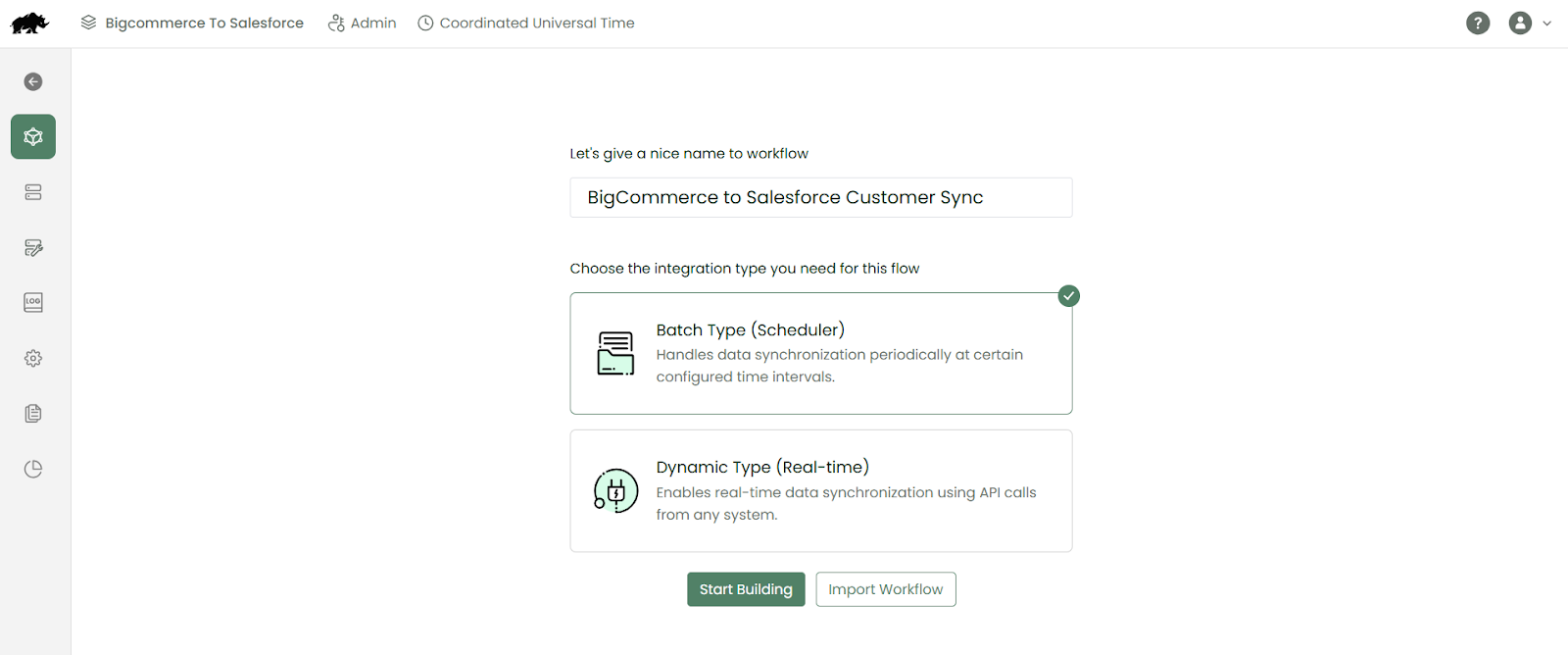
- Name the workflow: BigCommerce to Salesforce: Customer Sync
2. Choose Workflow Type
DCKAP Integrator supports two types:
- Batch Type: Runs periodically at set intervals
- Dynamic Type: Runs in real time using API calls to get live data.
- For this workflow, select Batch Type
Phase 2: Build the Workflow Logic
1. Configure Workflow Settings
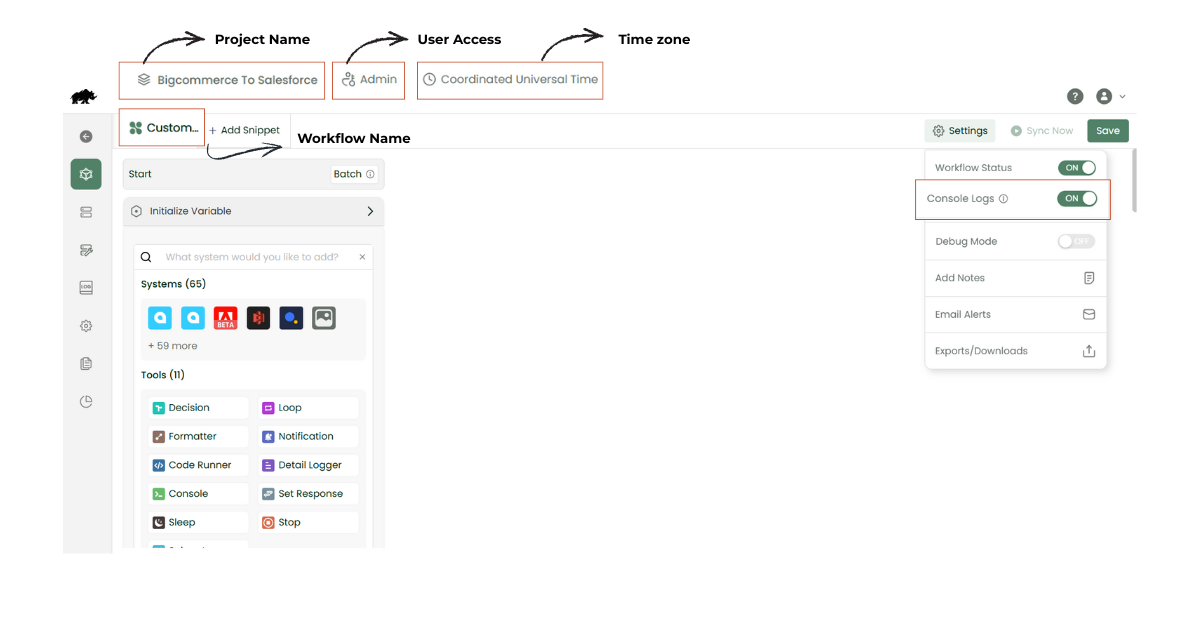
- Confirm project name, workflow name, user access, and time zone.
- Enable Console Log to track each step for troubleshooting.
2. Prepare Data
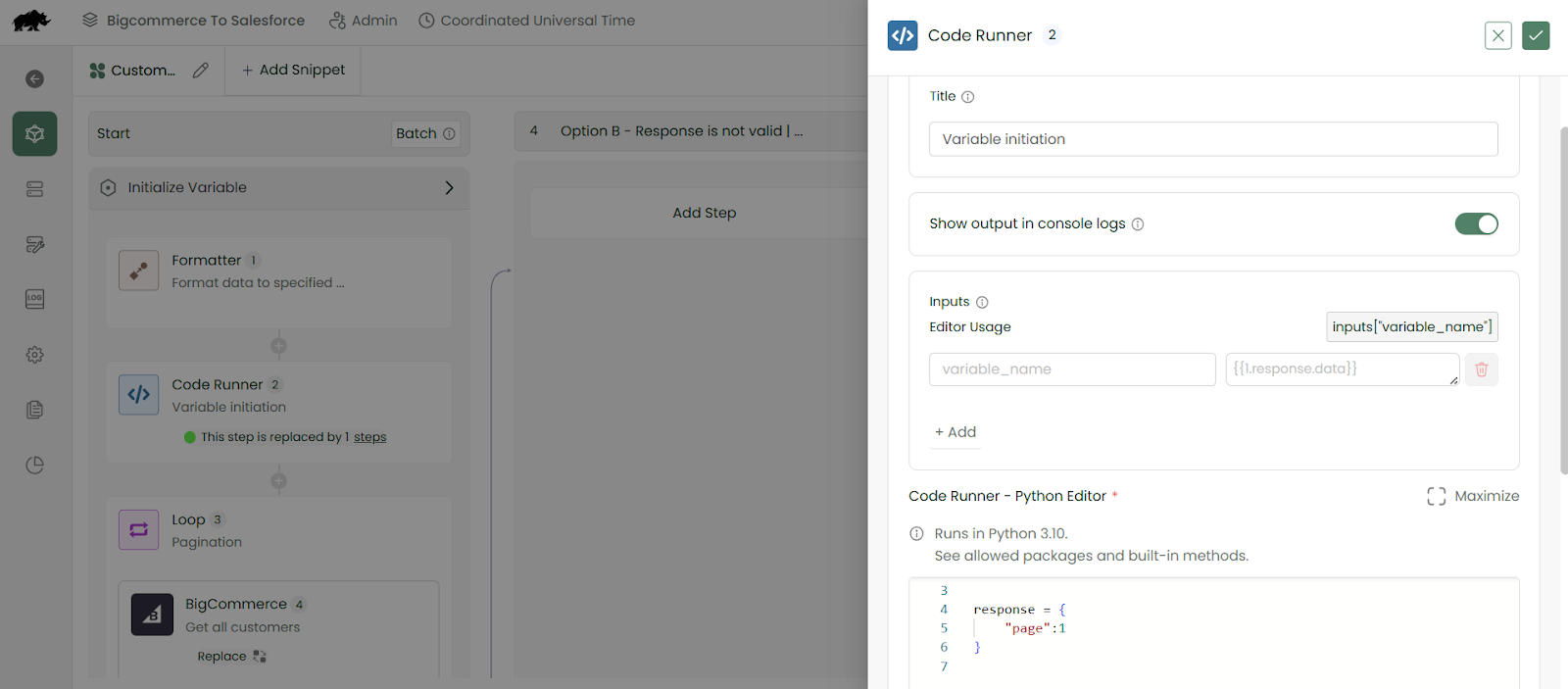
- Use Formatter to convert data and manage time zones.
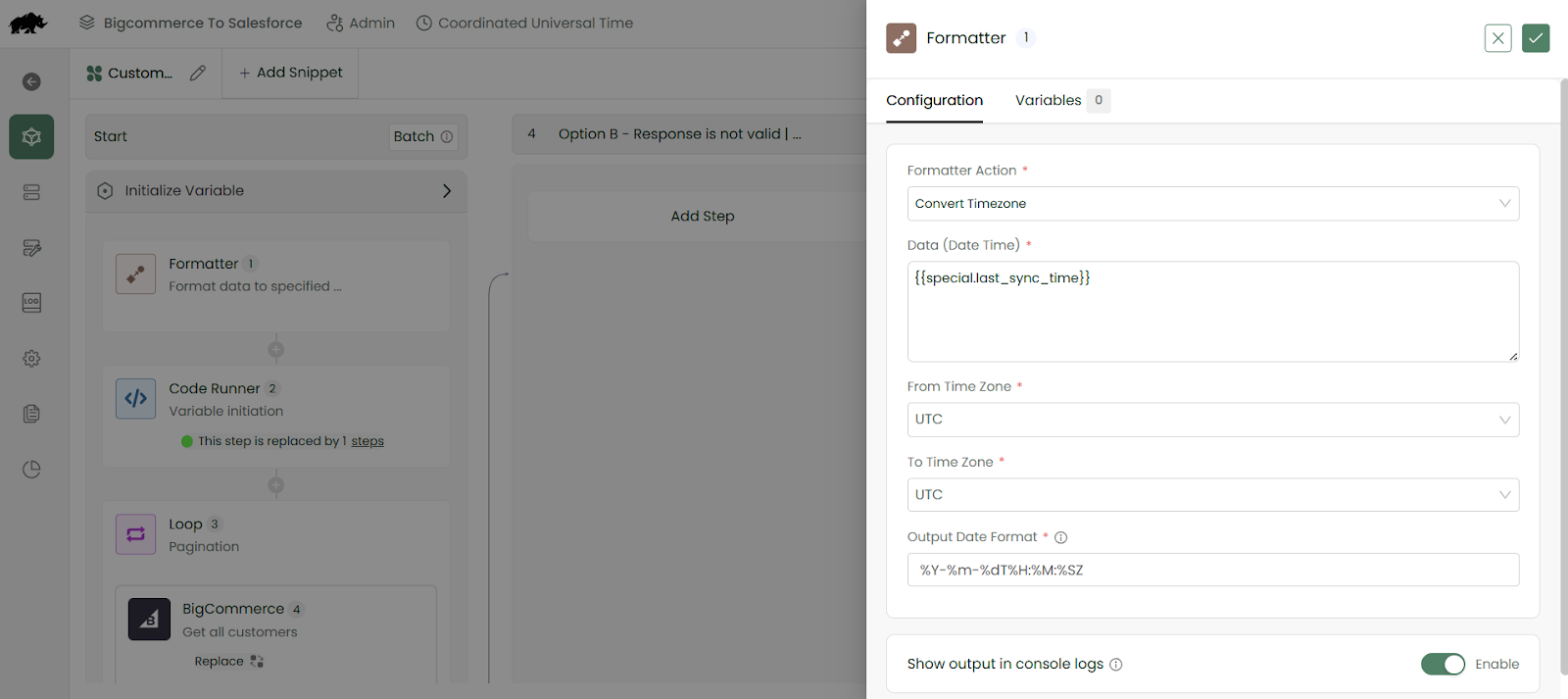
- Use Code Runner to arrange customer data cleanly on a page.
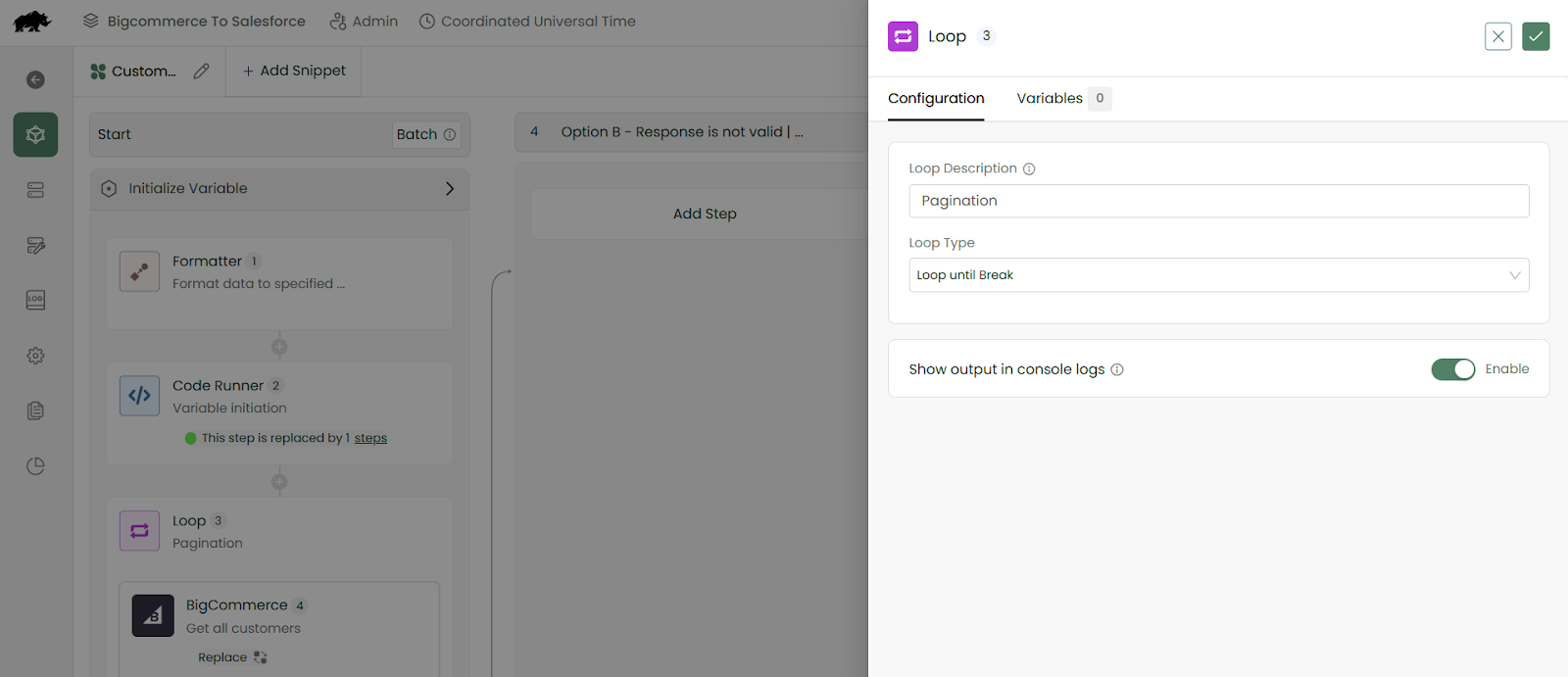
- Use Loop Until Break to handle multiple customers.
3. Connect to BigCommerce (Source System)
- Add a GET API to fetch customers
- Set parameters:
- Limit: Number of entries per page (e.g., 10)
- Date Modified: Use last sync timestamp

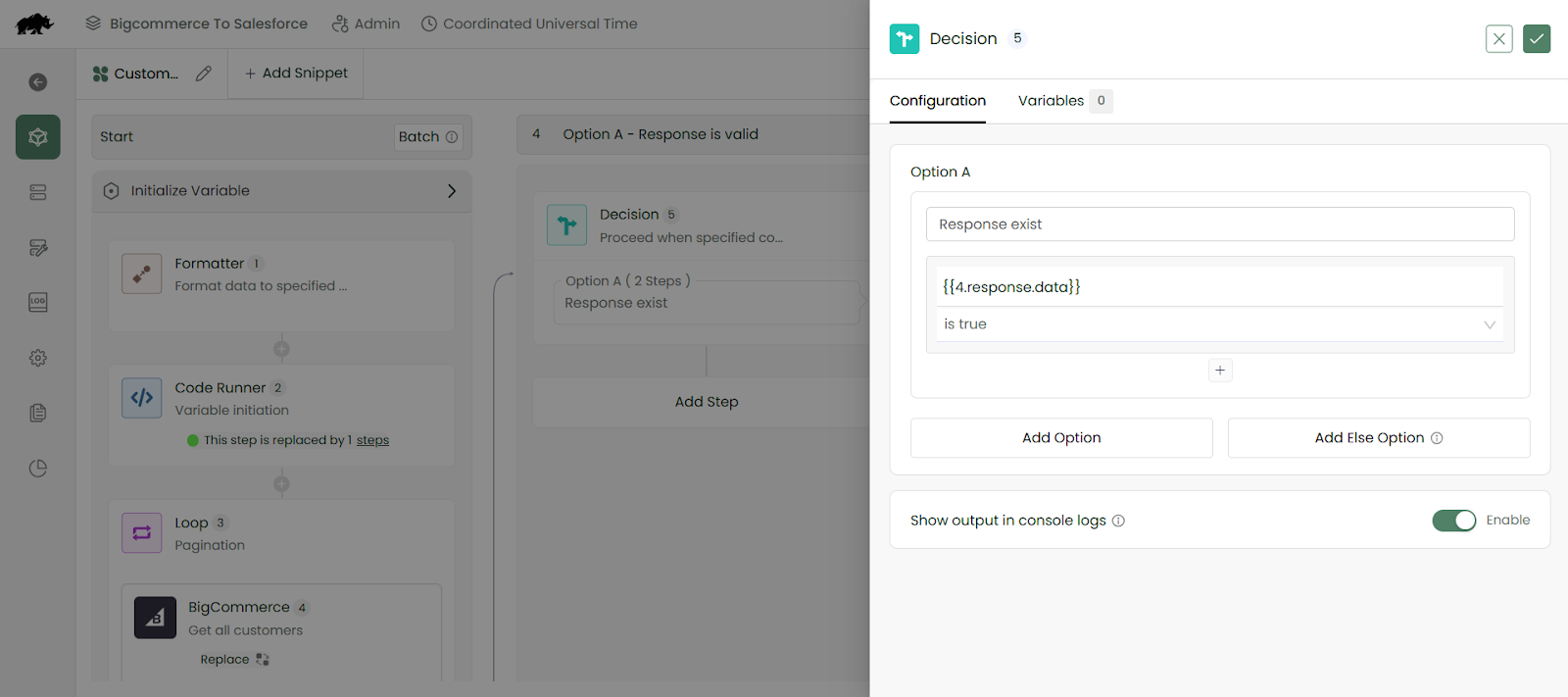
- Use the Decision Tool to continue only if conditions are met.
4. Handle Pagination
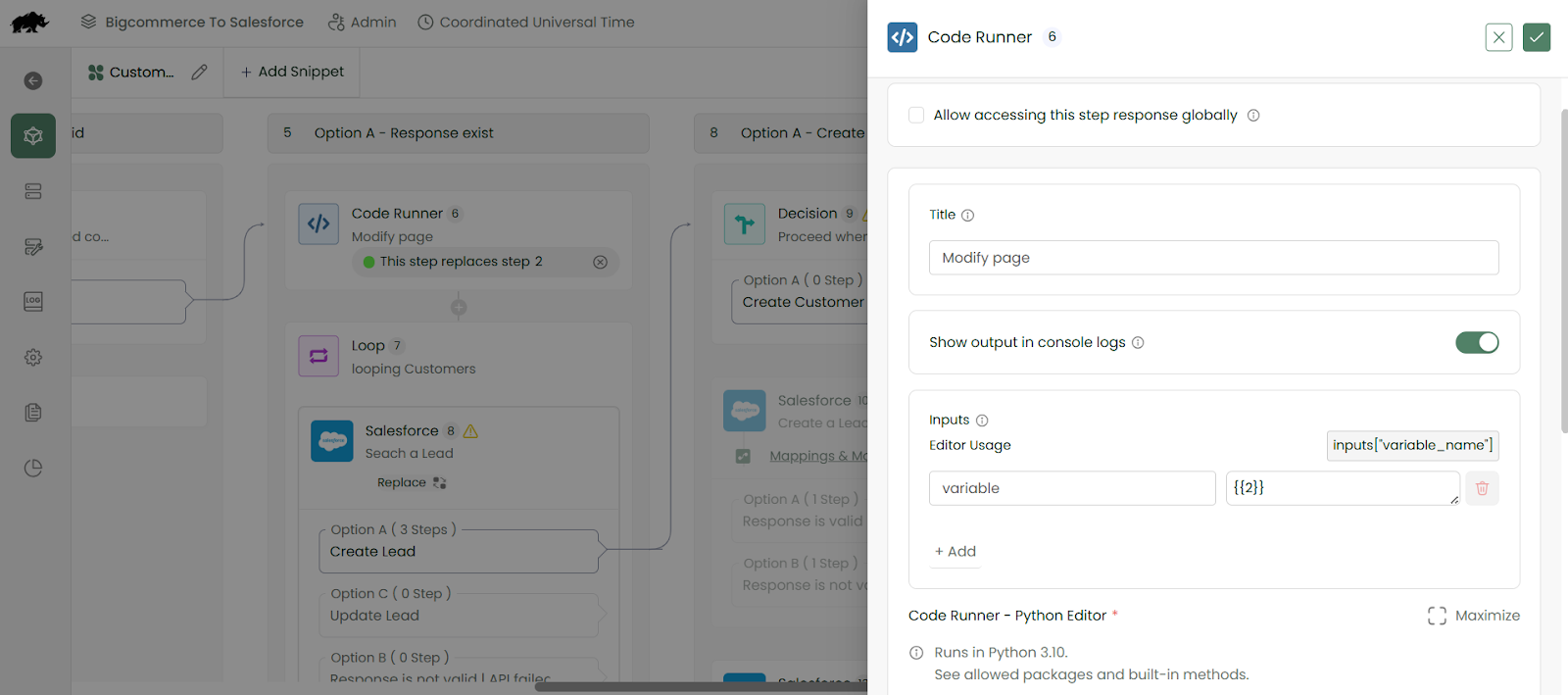
- Use Code Runner to increment page numbers automatically.
- Use Loop Through Values to process each customer record individually
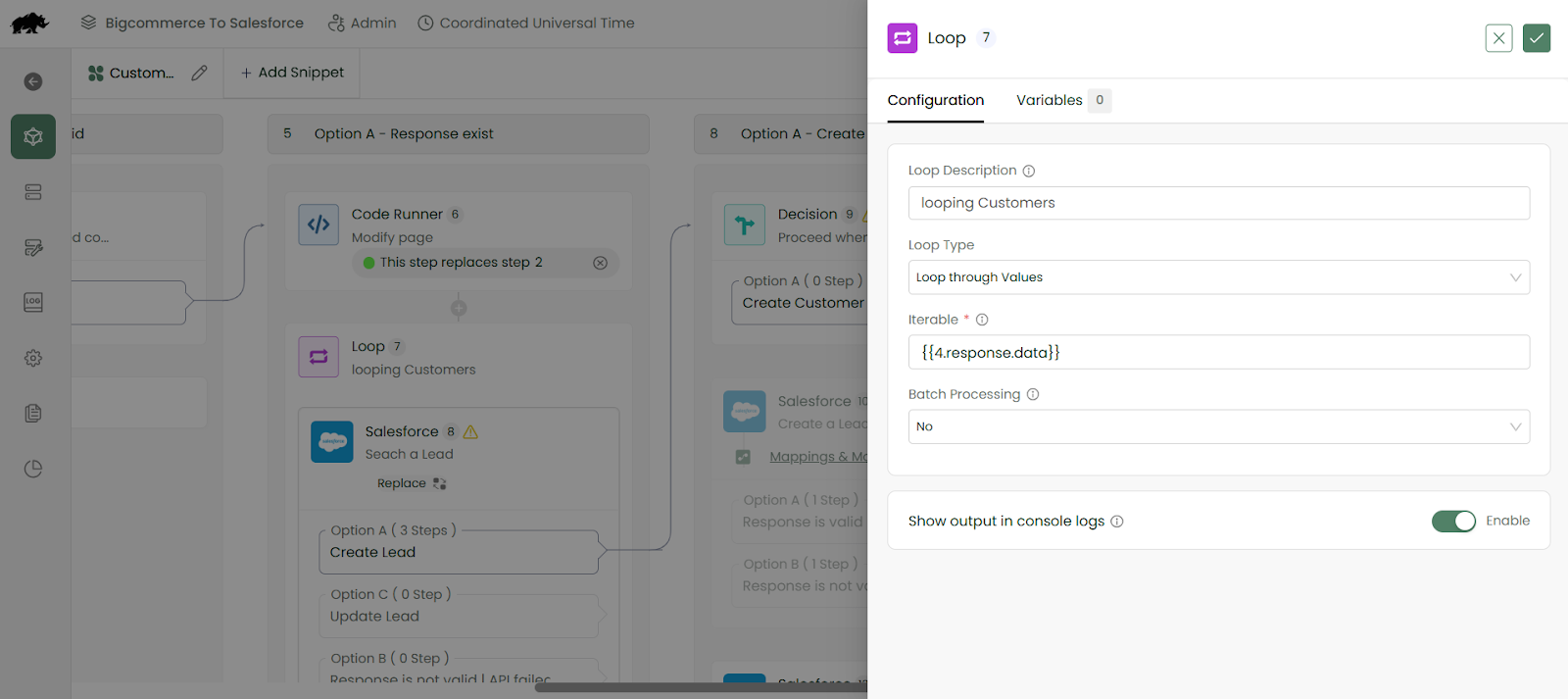
5. Connect to Salesforce (Target System)
- Add Search Lead API and fetch fields: ID, First Name, Company, Email.

- Add Decision Tool to check if customer already exists.

- If the customer is new, add POST API to create a Salesforce Lead.

- Map BigCommerce fields to Salesforce fields.
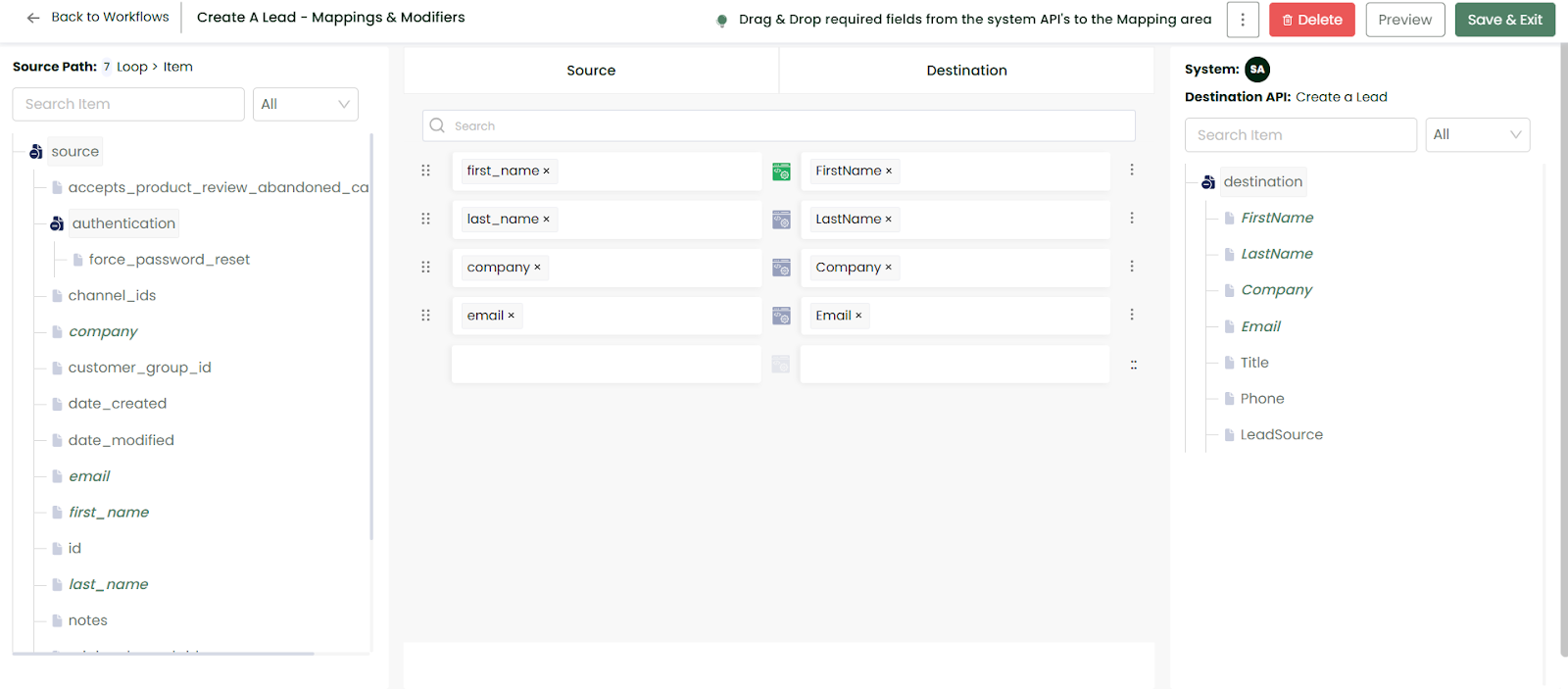
6. Confirm Data and Logs
- Add Detail Logger to capture customer details and confirm lead creation.

- Keep Console Log enabled for all system and API steps.
7. Test the Workflow
- Click Sync Now.
- Check console logs for execution details.

- Verify that leads appear in Salesforce.
This workflow ensures:
- New BigCommerce customers are synced to Salesforce automatically.
- Data is accurate and complete.
- You can monitor each step using logs.
Don’t let leads slip through the cracks. Set up this workflow today in DCKAP Integrator and make sure every BigCommerce customer’s information is synced to Salesforce automatically.
Start your workflow now and keep your sales pipeline moving efficiently.