Every integration works smoothly until something changes.
An API fails. A required field is missing. A system goes down for maintenance.
When this happens, teams usually ask three questions:
- What exactly failed
- Why did it fail
- How do we fix it without breaking everything else
This guide answers those questions using a practical, real-world example.
A Common Integration Scenario
Let us take a typical use case.
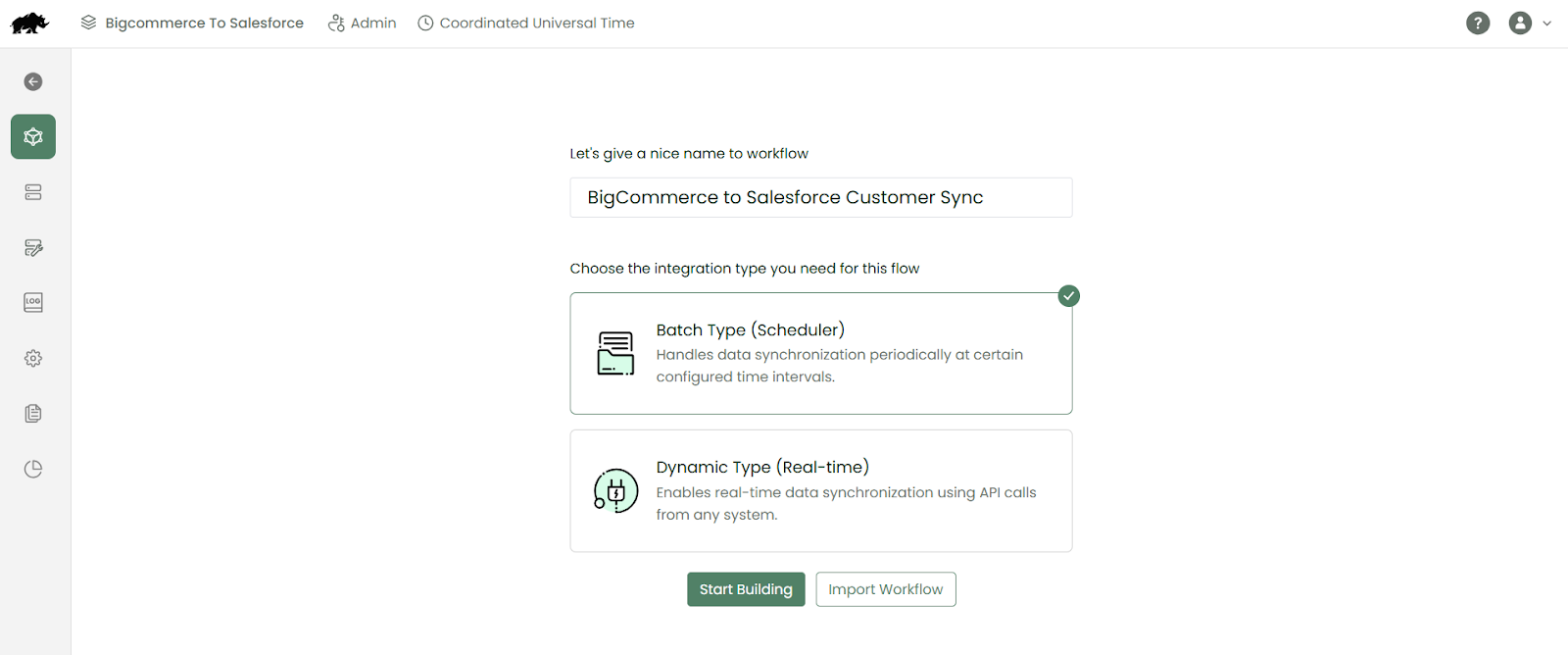
- Customers are created in BigCommerce
- Those customers are synced as leads into Salesforce
- Any updates flow automatically
This workflow runs on a schedule. Most of the time, it works without issues.
But when something goes wrong, knowing where to look and what to fix makes all the difference.
How an Integration Runs in DCKAP Integrator
Before looking at failures, let’s understand how a workflow normally runs.
- The workflow is triggered. This can be time-based or manual.
- Data is picked from the source system
- Data is validated
- Data is transformed if needed
- Data is pushed to the destination system
- Each step is logged
If all steps pass, the workflow completes successfully.
When one step fails, the workflow records exactly where and why it happened.
Common Reasons for Integration Failures
Most integration failures fall into one of these categories:
- Missing or invalid data
- Authentication or connection issues
- API or system downtime
- Data mapping or format mismatches
DCKAP Integrator does not hide these failures. It records them clearly in logs.
Step-by-Step: Maintaining Integrations
Step 1: Check the Workflow Status
When you know something did not sync:
- Open the workflow
- Check the latest run status
The status tells you whether the workflow:
- Completed successfully
- Partially failed
- Failed completely
This gives you an immediate view of the problem.
Step 2: Review Logs for Failed Records
Logs are the first place to investigate.
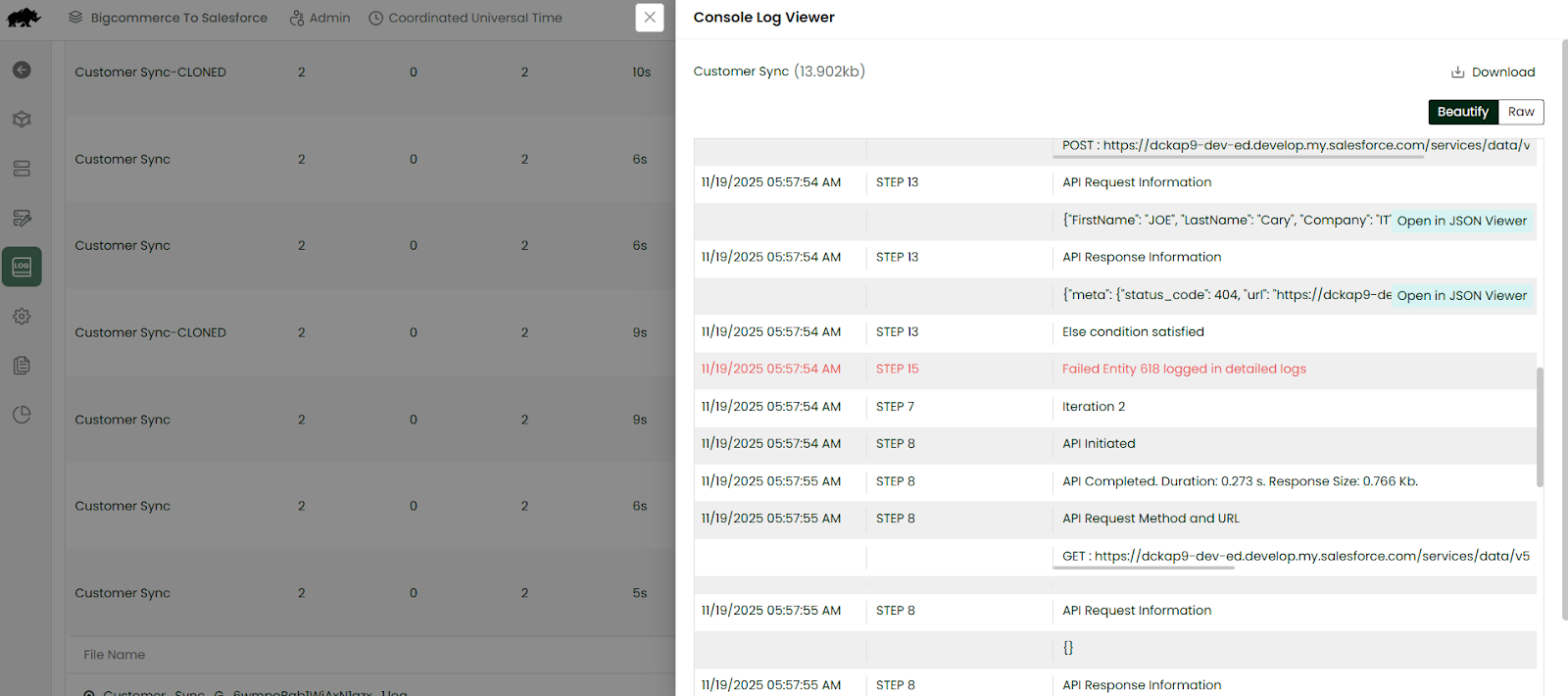
- Open the console logs
- Review error messages
- Identify the exact step where the failure occurred
- Open detailed logs for deeper analysis
Logs help you understand whether the issue is related to data, APIs, or configuration.
Step 3: Understand the Error Type
Next, determine whether the issue is caused by data or by the system.

Examples:
- Missing required field or duplicate values indicates a data issue
- Invalid value format points to a mapping issue
- Authentication failed suggests a connection issue
- A timeout usually means system availability problems
Correctly identifying the error type helps you decide the right fix.
Step 4: Fix the Issue at the Right Place
Avoid fixing symptoms. Always fix the source of the problem.
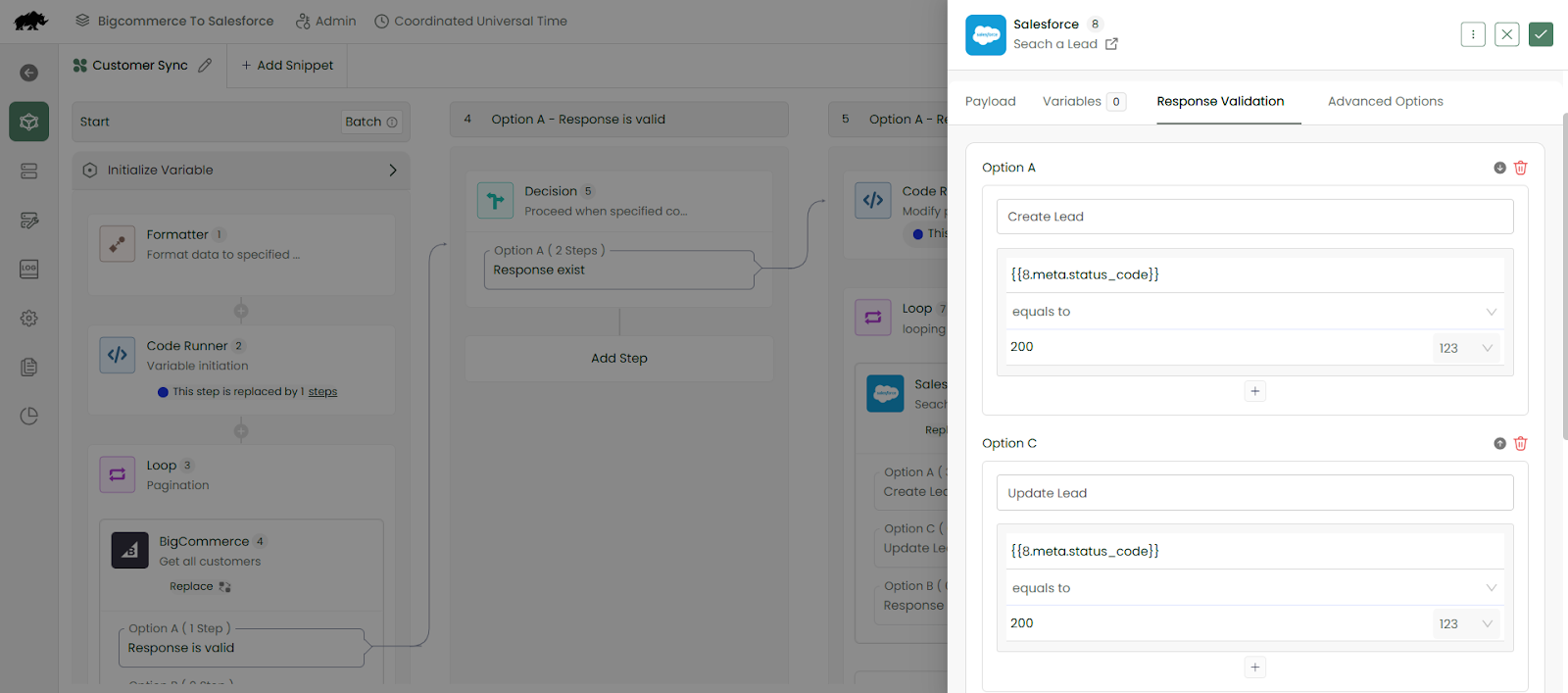
- For data issues, verify and correct the record in the source system, then review the conditions in response validation section.
- For mapping issues, update the workflow mapping.

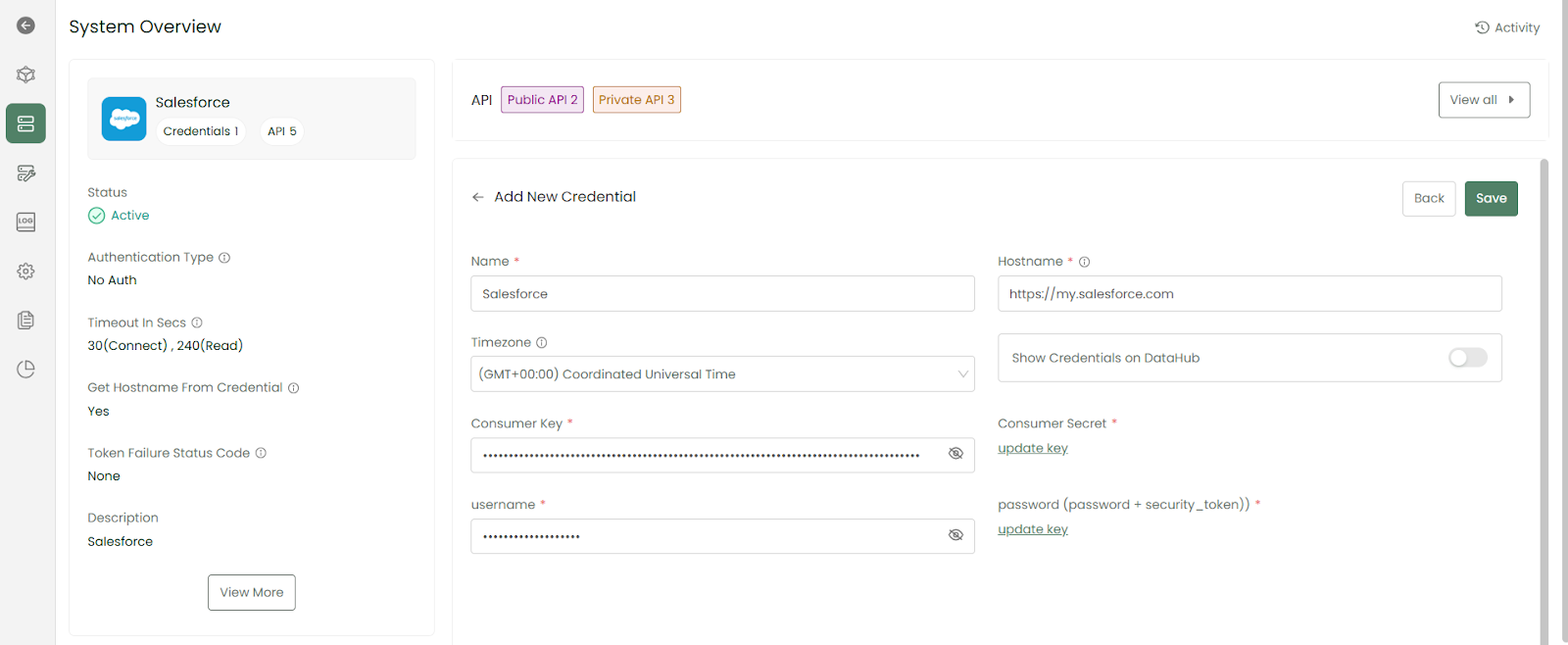
- For connection issues, check the credentials and API manager.
- For system downtime, wait for the system to recover.
Once fixed, you do not need to rebuild the workflow. You can simply run it again.
Step 5: Run the Workflow Again and Monitor
After fixing the issue:
- Run the workflow again to sync the data
- Confirm the workflow completes successfully
- Review logs to ensure no new errors appear
This confirms the issue is fully resolved.
Integrations do not need to be fragile.
With clear logs, visibility, and a defined process, integration maintenance becomes routine work rather than emergency work.
DCKAP Integrator is built to support this approach. It helps teams understand what happened, fix the right issue, and continue operating with confidence.
To learn best practices for using DCKAP Integrator, watch the video linked here.
For more details, check the DCKAP Integrator help guide to fix issues faster and understand the platform better. If you face common errors and want to know how to handle them, you can also refer to the Common Errors in DCKAP Integrator and What They Mean.