Smooth communication with trading partners is no longer optional; it’s the backbone of modern distribution. Manual processes like retyping orders, double-checking invoices, and chasing shipment details slow businesses down and introduce costly errors.
DCKAP EDI solves this by automating the exchange of documents and syncing everything with your ERP in real time.
This guide explains, step by step, how DCKAP EDI works and why it’s a trusted end-to-end solution for distributors.
Understanding the Challenge
- Orders arrive as PDFs or emails and must be keyed into the ERP.
- Invoices are checked manually, often leading to delays.
- Shipment details are scattered across emails and spreadsheets.
- Errors creep in, resulting in chargebacks or strained partner relationships.
These issues slow down cash flow, frustrate customers, and keep teams stuck in repetitive tasks.
What DCKAP EDI Offers
- Automatic document flow: Orders, invoices, and shipment notices move seamlessly between systems.
- Real-time updates: our ERP stays the single source of truth.
- Compliance-ready exchanges: Supports ANSI X12, EDIFACT, TRADACOMS, and secure protocols like AS2, FTP, and SFTP.
- Full visibility: A centralized dashboard shows every transaction, message, and log.
Setting Up Trading Partners
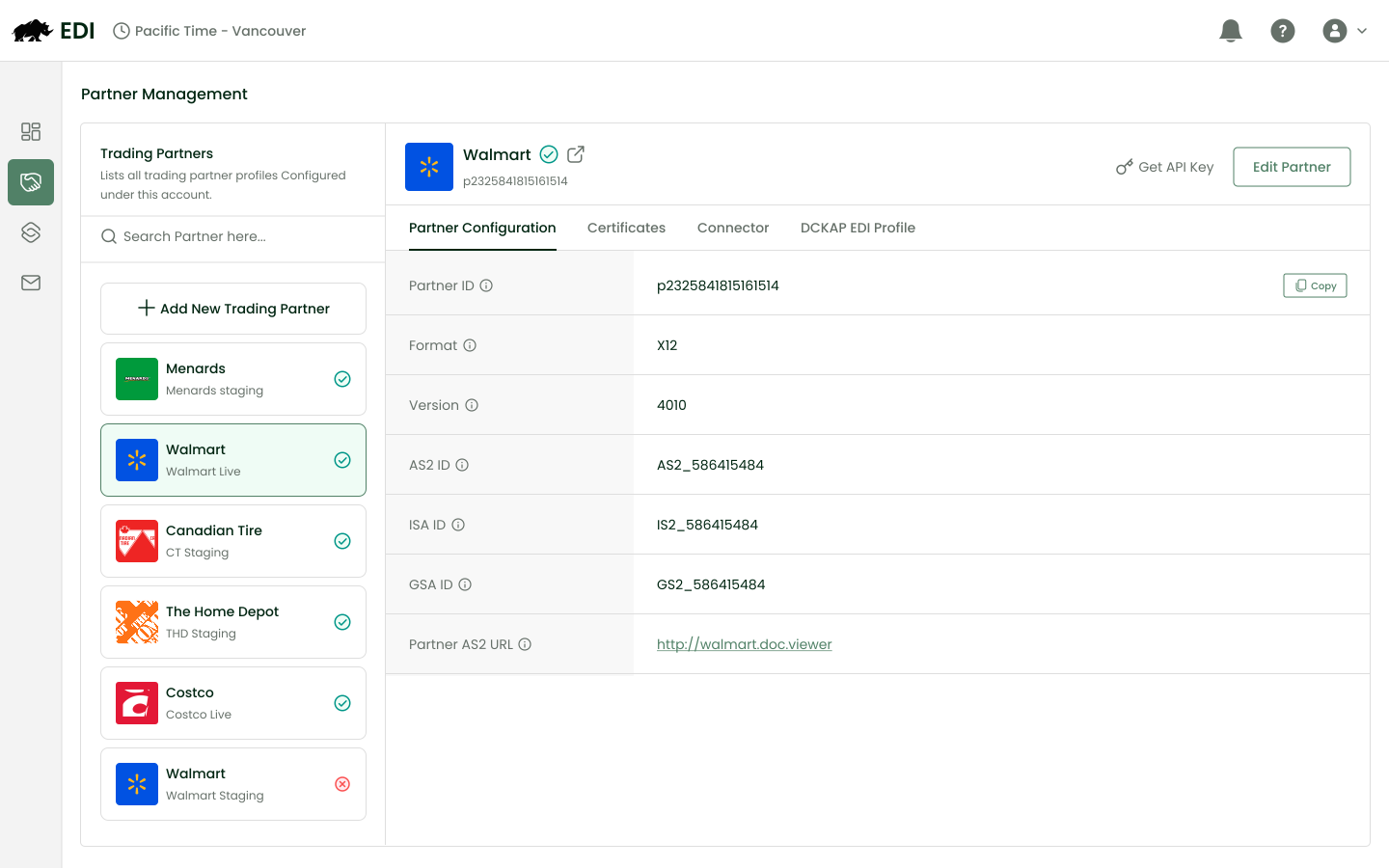
- Navigate to the EDI tab in your dashboard.
- Add a partner (e.g., Walmart, Costco).
- Enter partner details:IDs, format, version, AS2 ID, ISA ID, GSA ID, and Partner AS2 URL.
- Generate an API key for secure integration.
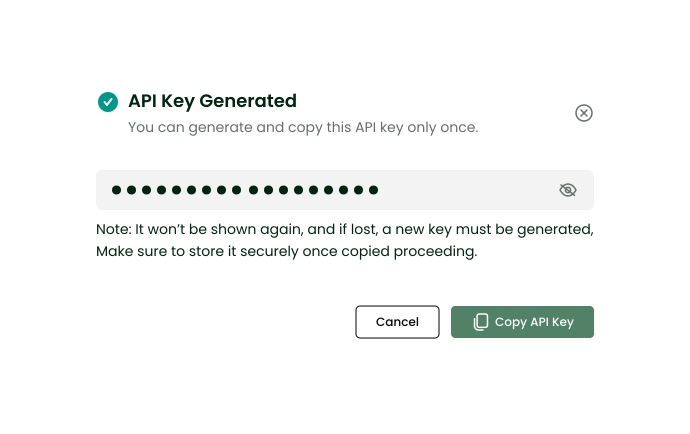
This ensures consistent onboarding, reducing mismatches and setup errors.
Securing Connections
- Upload certificates in the Certificates tab.
- The system automatically checks expiry dates and flags issues.
- Configure encryption and signing algorithms per partner.
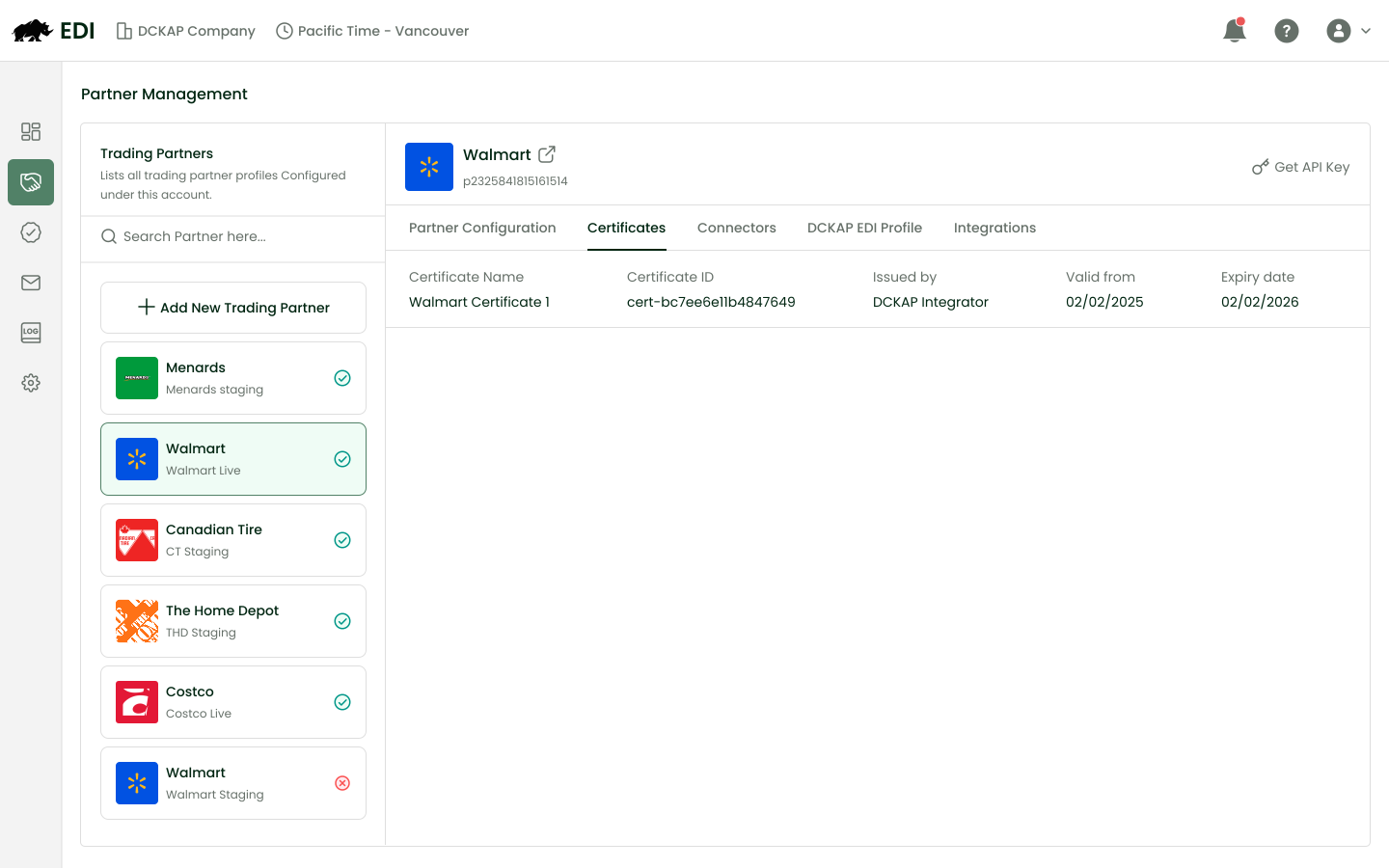
Security is built in, so you don’t have to manually track certificate status.
Configuring Connectors
- Enter partner AS2 URLs.
- Choose encryption/signing algorithms.
- Enable MDN acknowledgments if required.
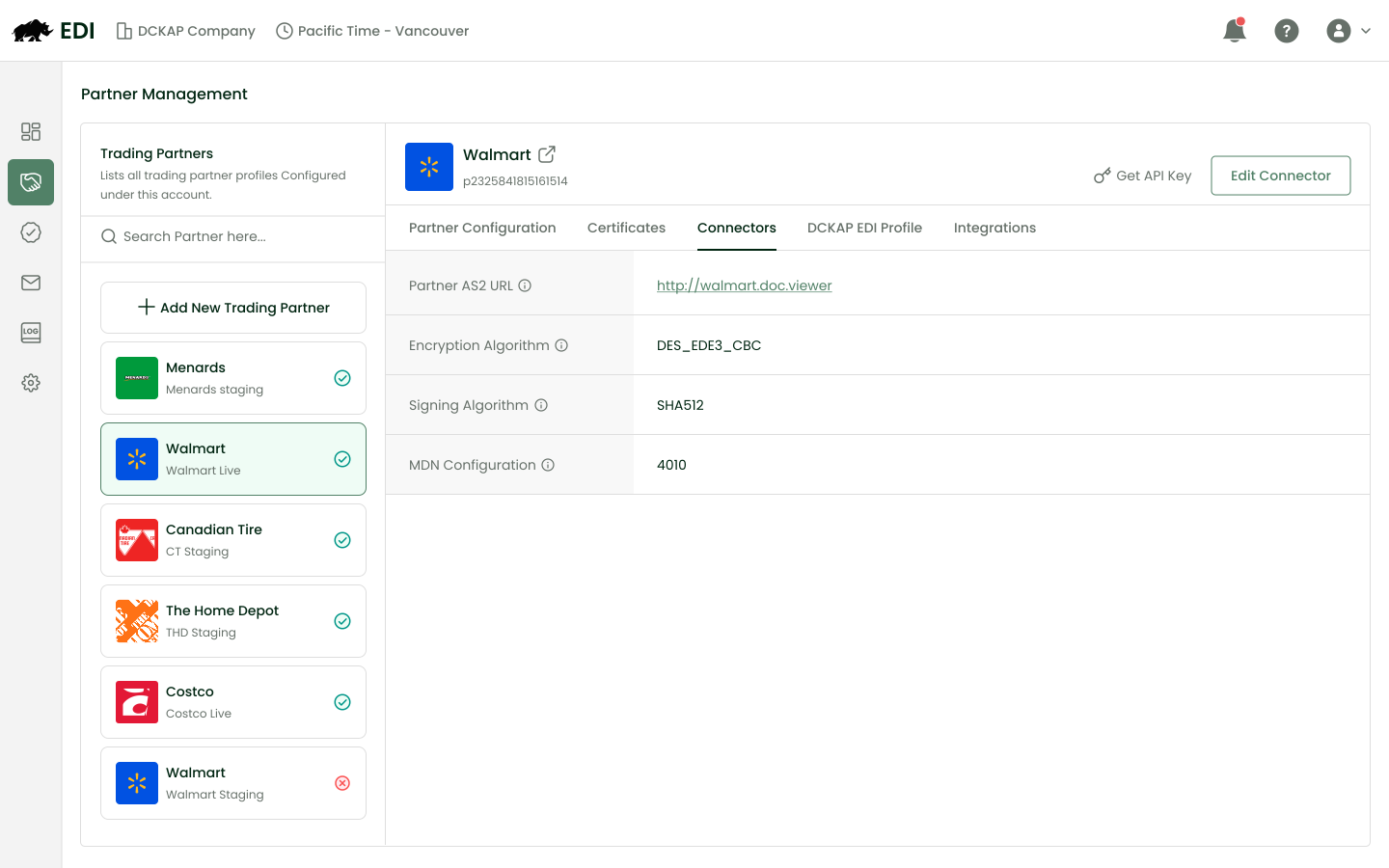
Once configured, your connection is secure and ready for transactions.
DCKAP EDI profile.
- It’s a system-generated local profile created automatically when a trading partner is added.
- It includes the connector type, AS2 ID, AS2 URL, ISA qualifier, ISA ID, GSA ID, and the DCKAP certificate.
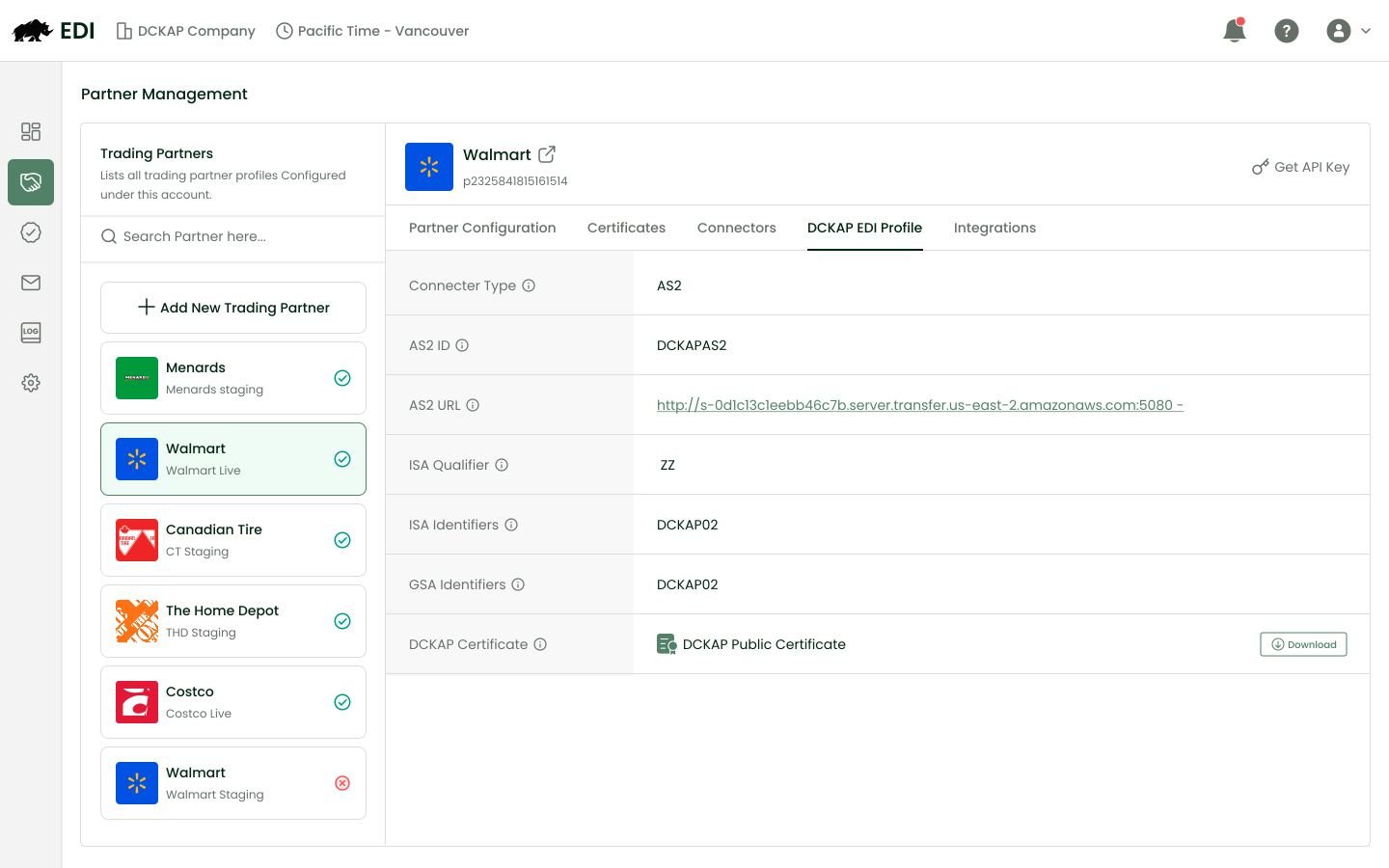
This profile represents DCKAP during EDI communication and does not require manual configuration.
Managing Transactions
- The Integrations tab shows all inbound and outbound documents.
- Each transaction links to a workflow, ensuring smooth ERP updates.
- Add or update mappings anytime without disrupting existing setups.
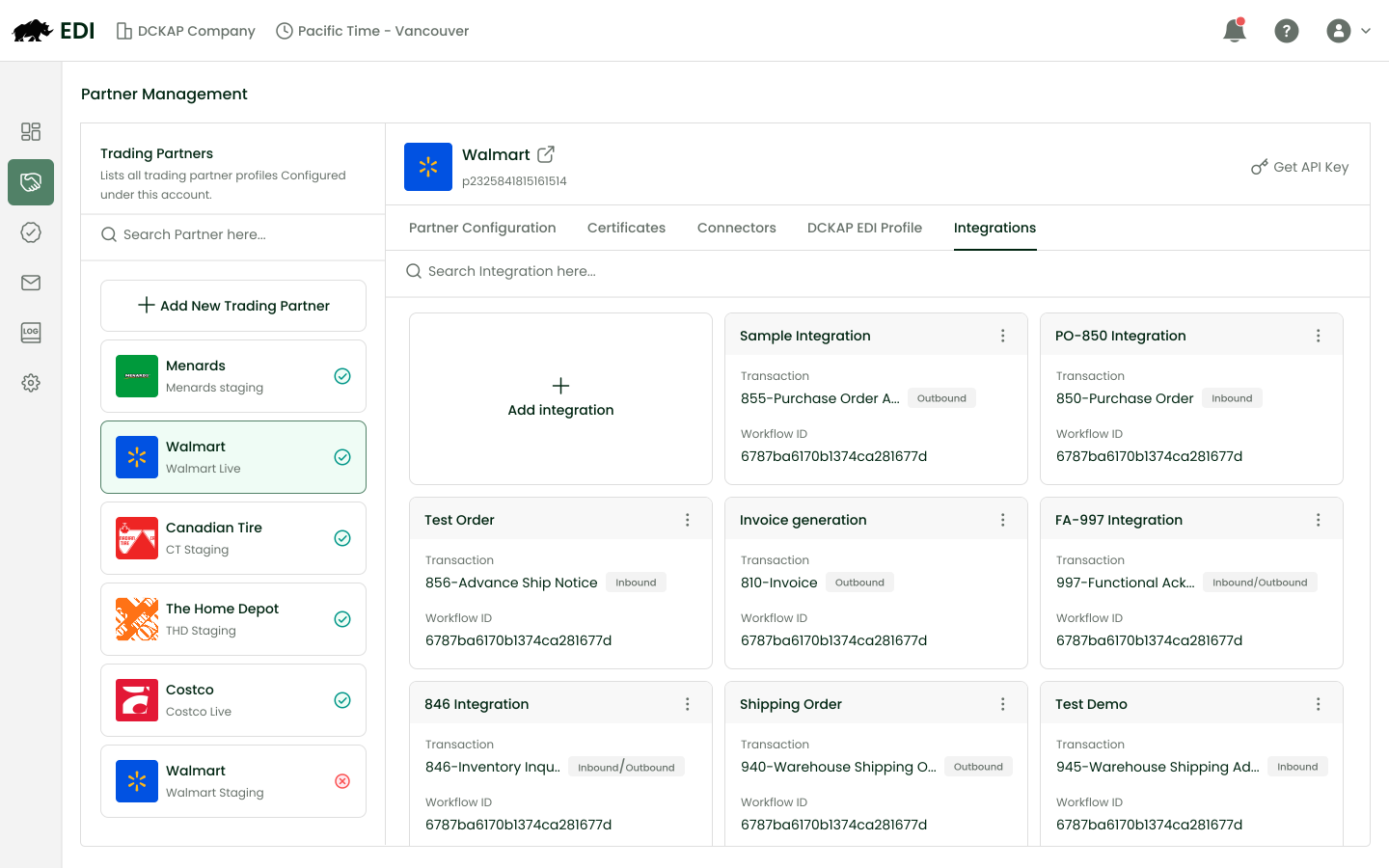
This keeps your ERP aligned with partner systems, reducing manual intervention.
Tracking Messages and Logs
- Messages section: Monitor incoming and outgoing AS2 messages.
- Status options: Sent, Queued, Incomplete, Failed.
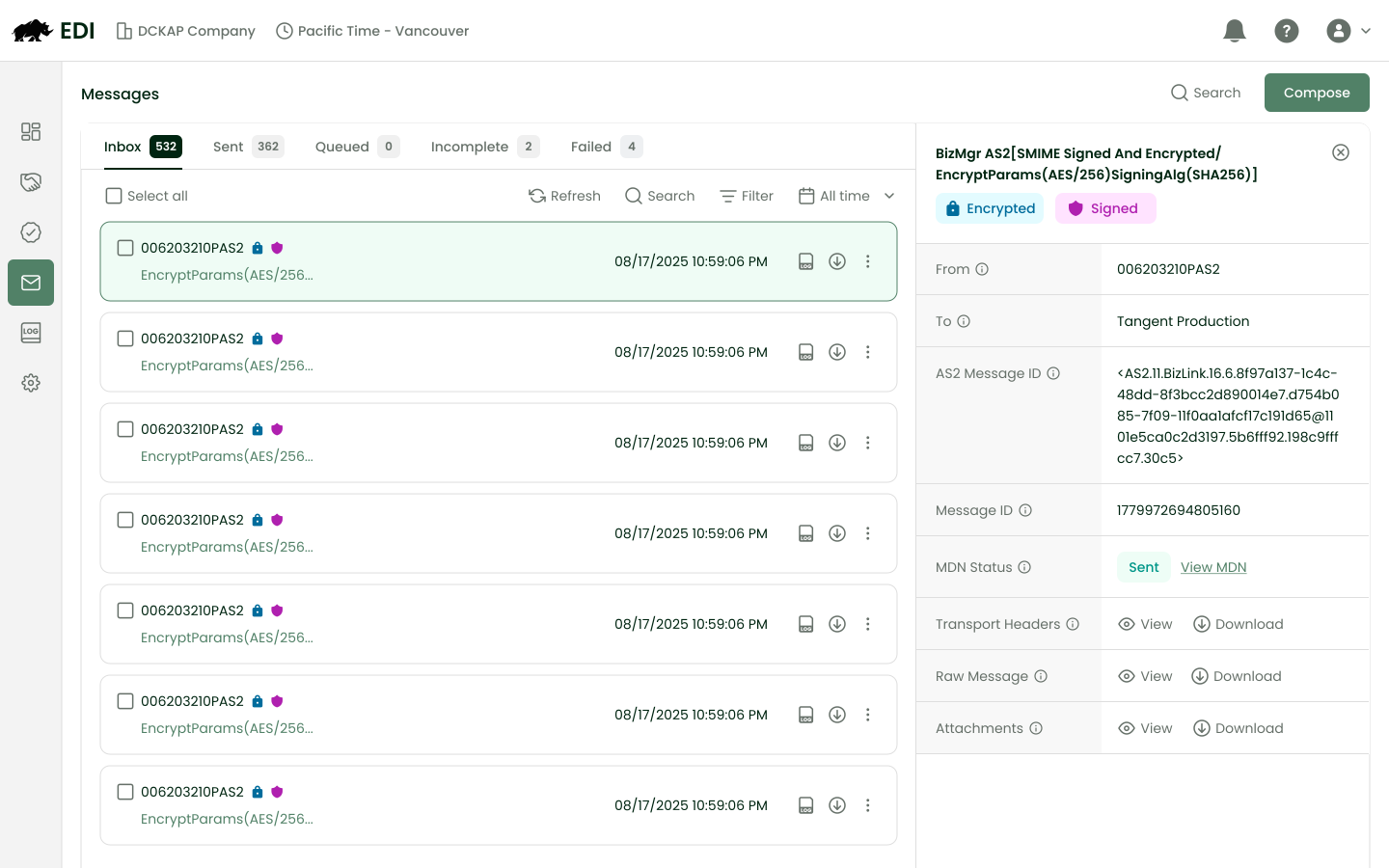
Logs page: Detailed step-level logs with timestamps. Search by partner name or message ID.
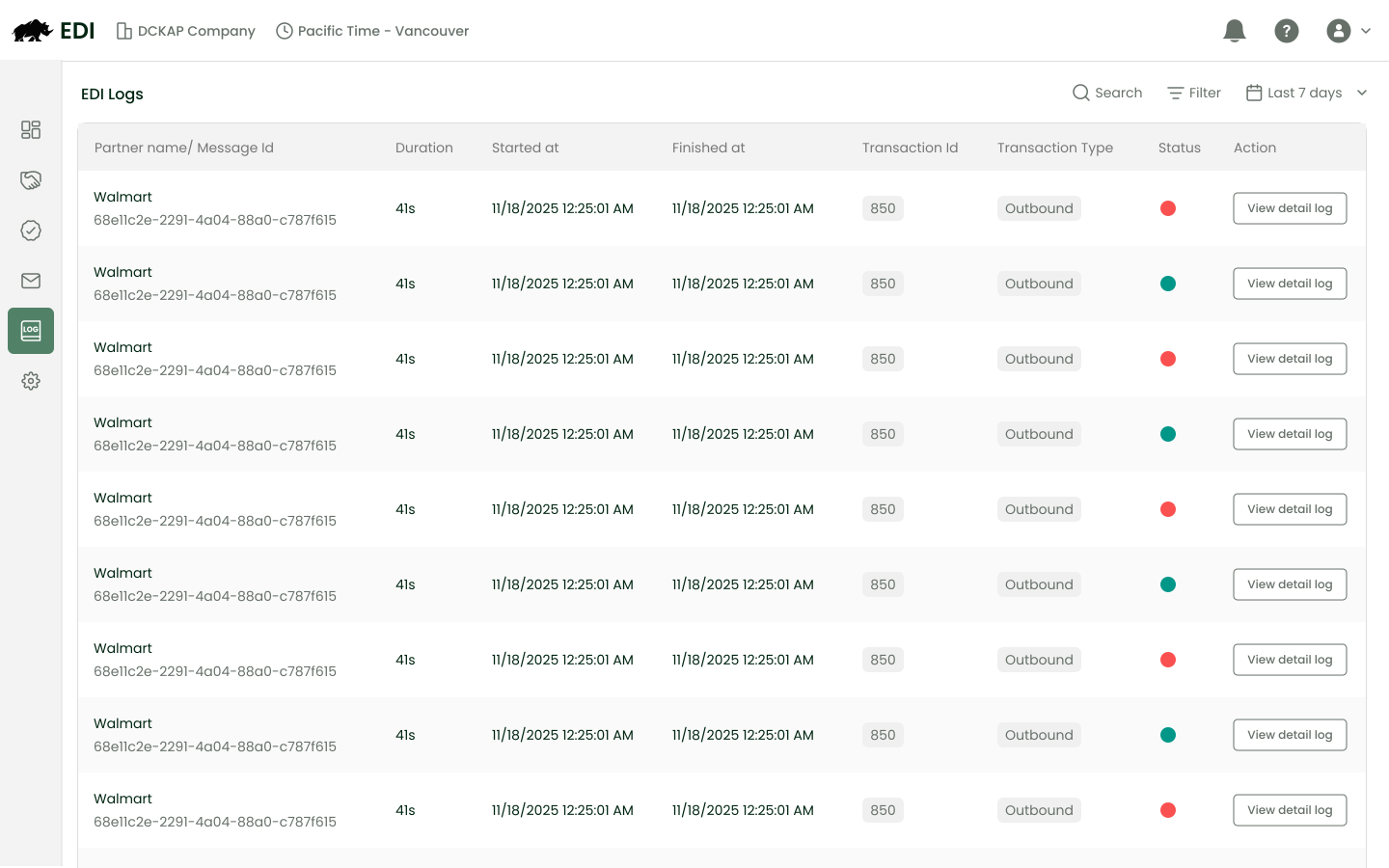
This visibility makes troubleshooting faster and builds confidence in your EDI operations.
Partner Status Management
- Pending: Setup incomplete.
- Active: Ready to exchange data.
- Inactive: Disabled until reconfigured.
Clear statuses keep your team aligned and prevent miscommunication.
The Payoff for Distributors
- Faster order cycles: Orders processed in hours, not days.
- Error reduction: Automation eliminates manual mistakes.
- Lower costs: Less wasted time, fewer chargebacks.
- Stronger relationships: Partners trust your speed and accuracy.
- Scalability: As your business grows, DCKAP EDI grows with you.
DCKAP EDI isn’t about adding complexity—it’s about removing friction.
By automating document exchange and syncing everything with your ERP, it helps distributors ship faster, invoice sooner, and keep customers happy.
If you’re ready to move past manual processes and build confidence in your operations, DCKAP EDI is the platform you can rely on.
Want to dig deeper and see how EDI works step by step?
Check out What is EDI & How Does EDI Work.