A practical guide to connecting your e-commerce store with your ERP system
Running an online store on Shopify while managing back-office operations in Epicor Prophet 21 creates a common challenge: two systems that don’t communicate. Orders placed online need to be manually entered into your ERP. Inventory counts require constant reconciliation. Customer data lives in two places, often with discrepancies.
This disconnect leads to delayed order processing, overselling due to outdated inventory, and hours spent on repetitive data entry. When Shopify and Prophet 21 work in isolation, you’re not getting full value from either platform.
Connecting these systems changes that equation. Data flows automatically between your storefront and your operations backend – orders, inventory levels, customer information, and pricing all stay synchronized without manual intervention.
What You Can Sync Between the Two Systems
From Prophet 21 to Shopify:
- Product information (descriptions, SKUs, specifications)
- Inventory quantities and availability
- Pricing, including customer-specific rates
- Supplier data
From Shopify to Prophet 21:
- New customer registrations
- Online orders and transactions
- Payment and invoice details
Bidirectional:
- Customer profile updates
- Order status changes
- Inventory adjustments
The integration keeps Prophet 21 as your single source of truth for operations while ensuring your Shopify storefront reflects accurate, real-time data.
How the Integration Works
The connection between Shopify and Prophet 21 happens through DCKAP Integrator, which acts as a bridge between the two systems. Here’s the process, step by step.
Step 1: Connect Both Systems
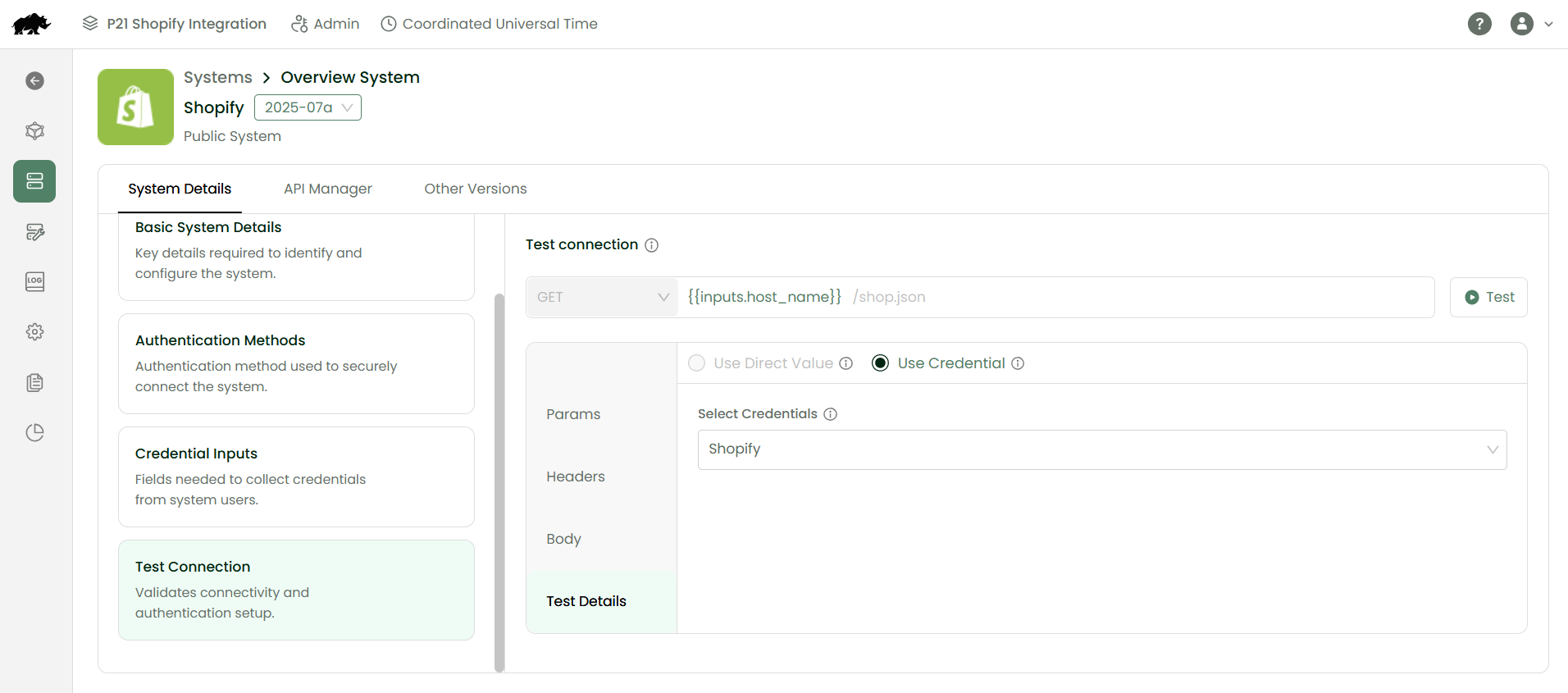
Start by configuring Shopify and Prophet 21 within DCKAP Integrator.
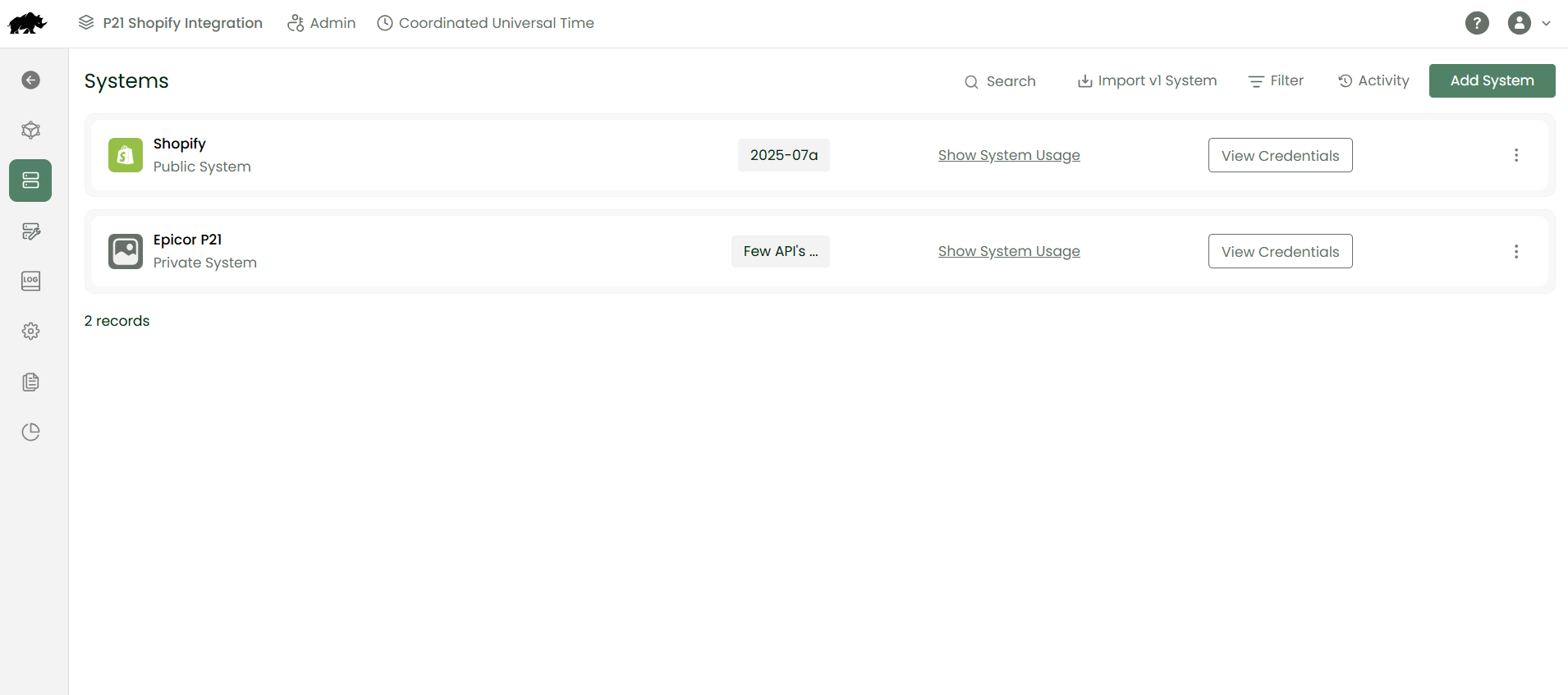
Shopify Setup
- Enter store credentials
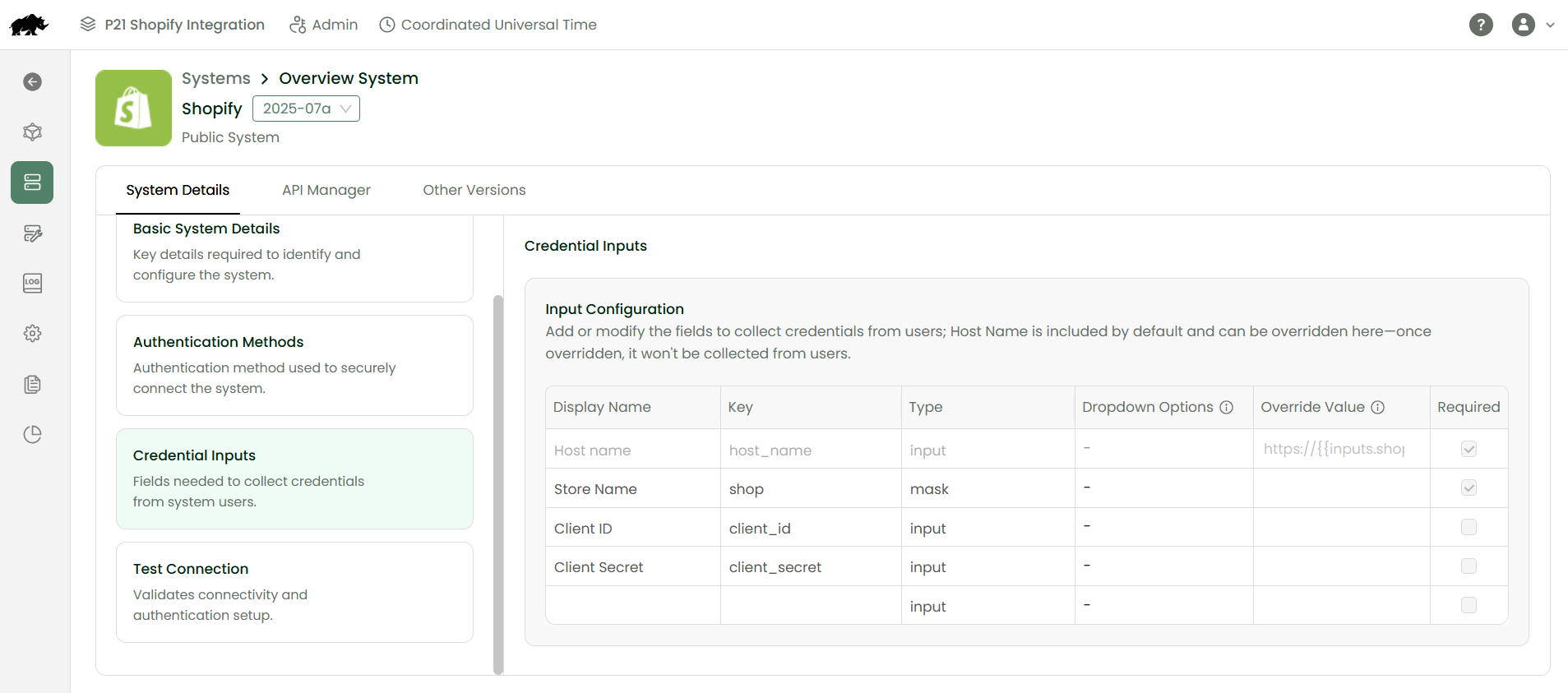
- Authenticate the connection
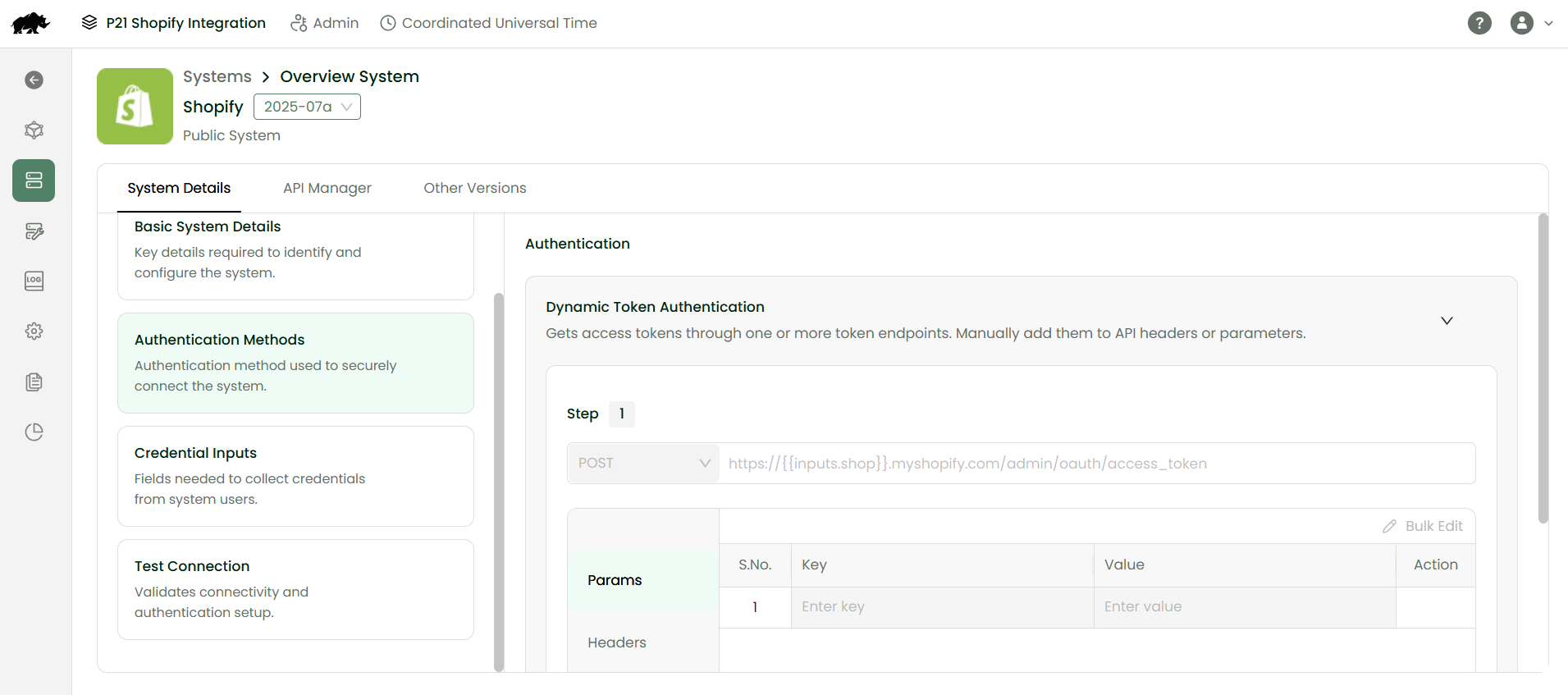
- Verify access through API configuration
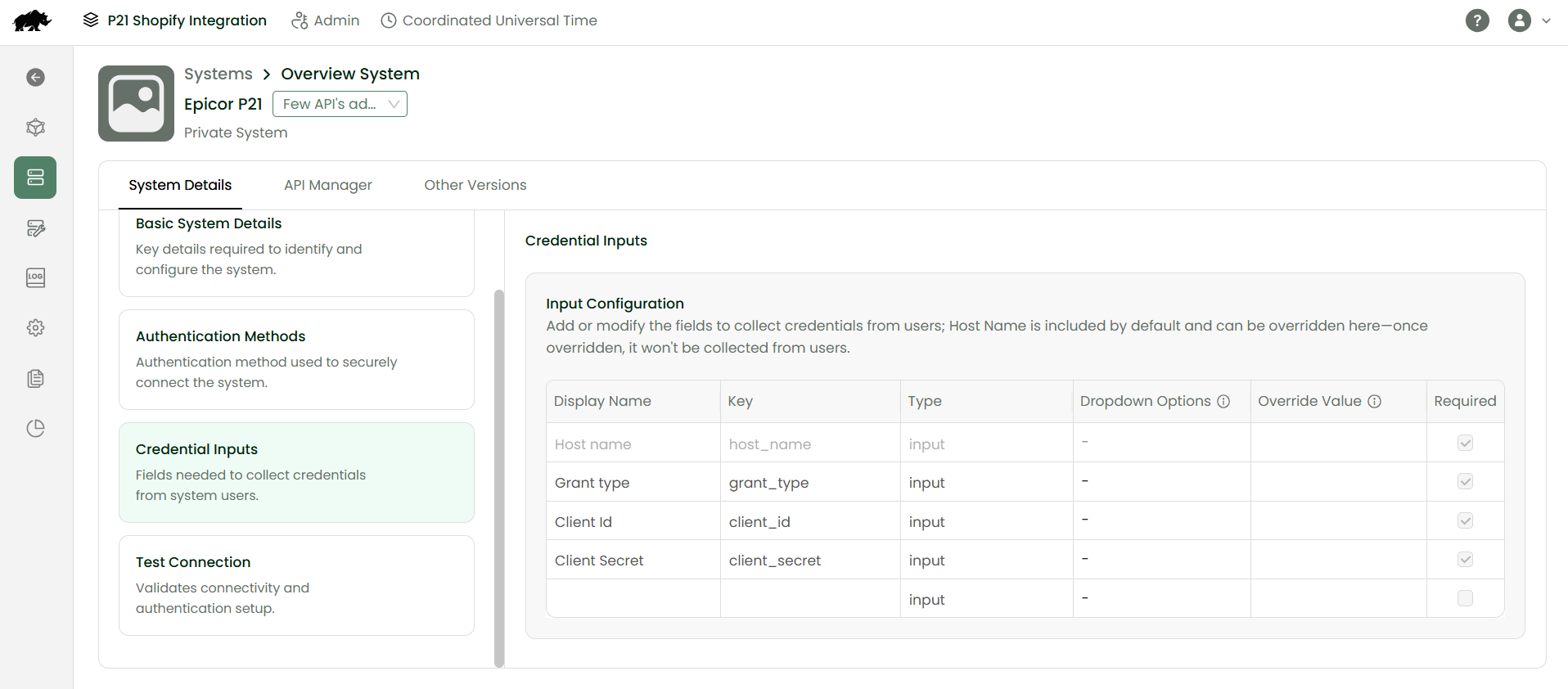
Prophet 21 Setup
- Enter store credentials
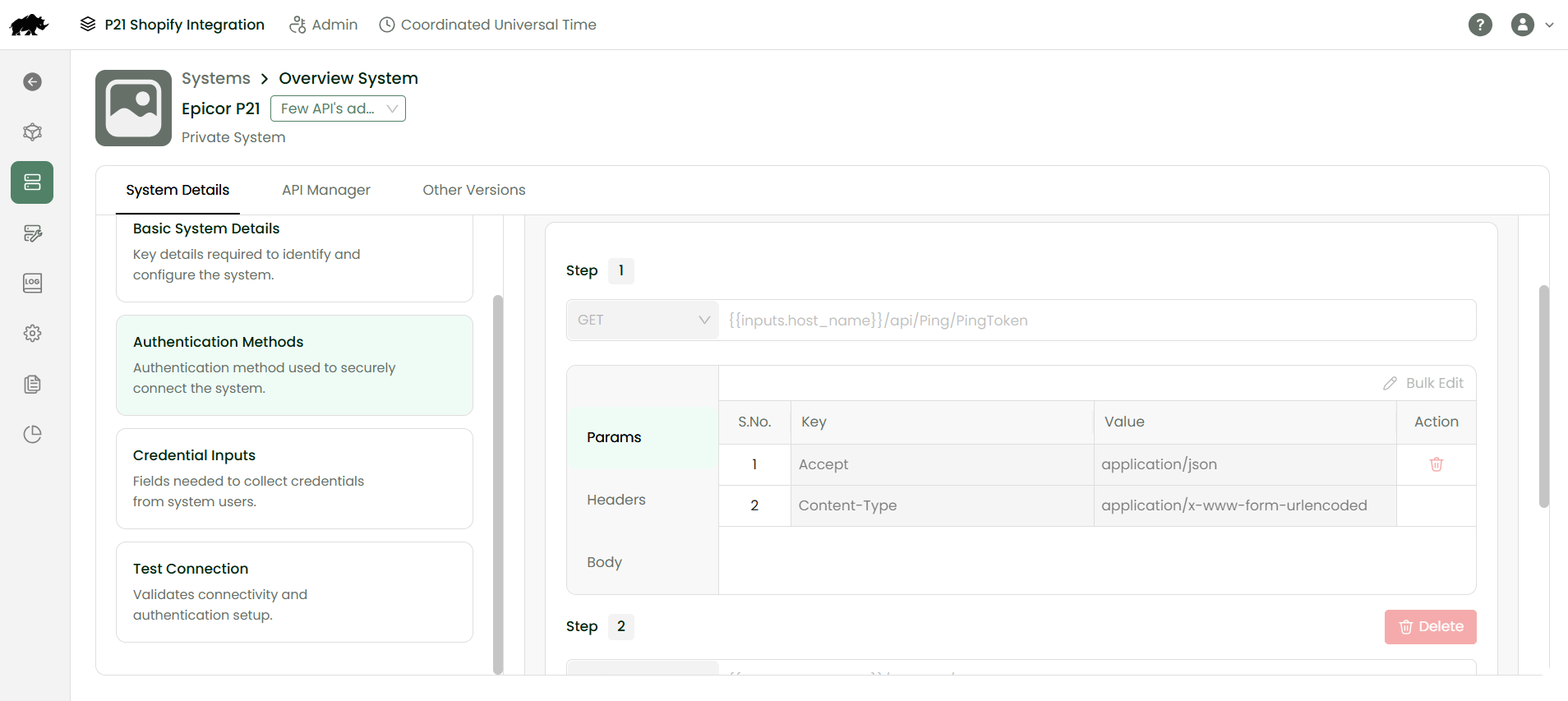
- Authenticate the connection
- Verify access through API configuration
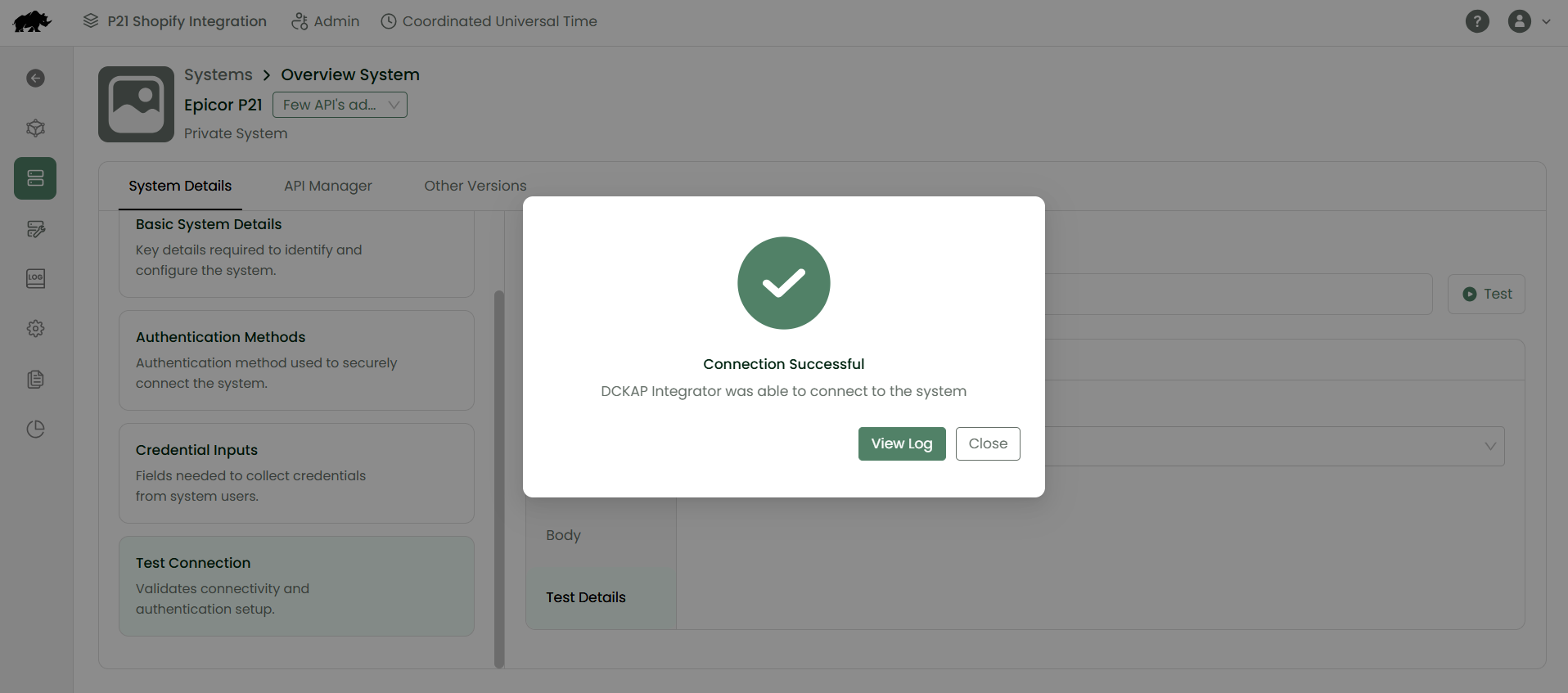
Once both connections are successful, you are ready to build workflows.
Step 2: Build a Workflow
A workflow defines how data moves between systems. Think of it as a set of instructions that tells DCKAP Integrator what to grab from one system and where to put it in the other.
For Example: Syncing Products from Prophet 21 to Shopify.
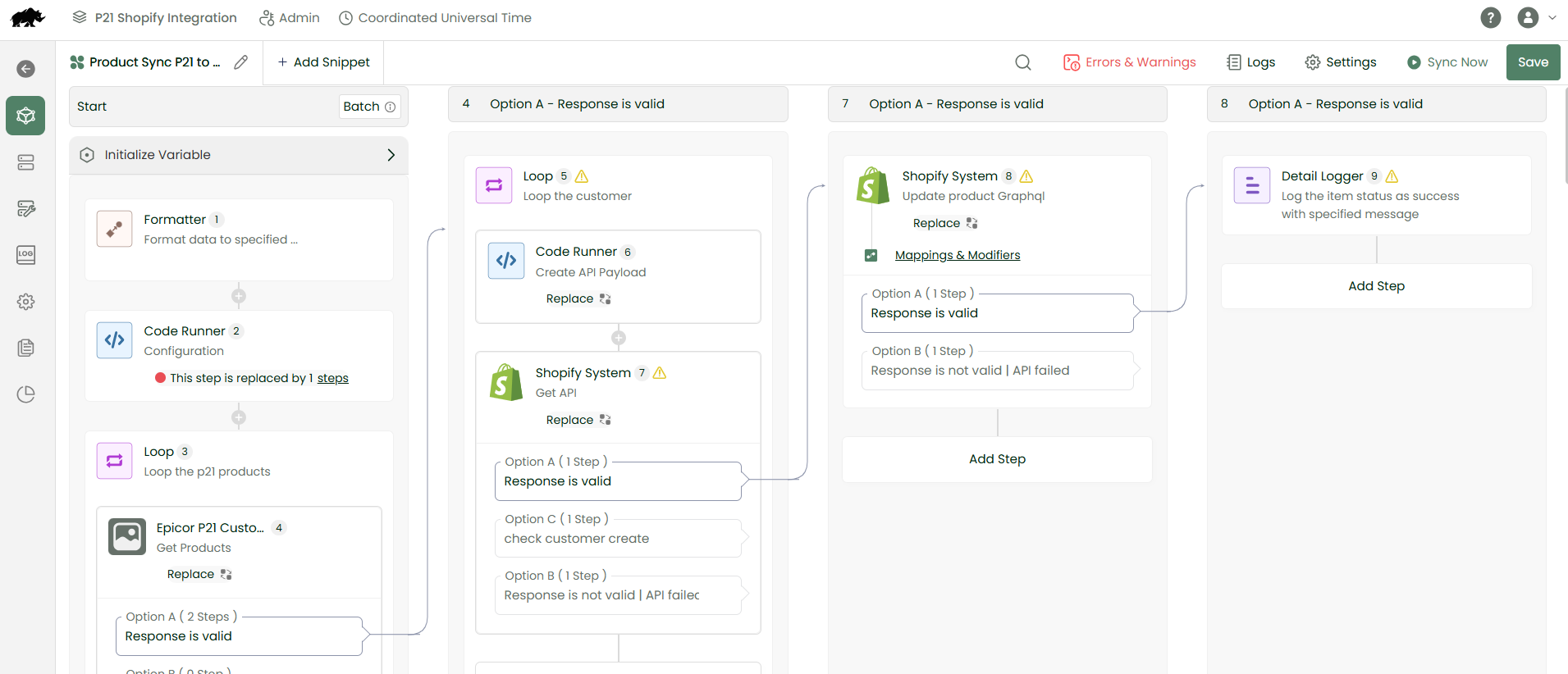
This workflow pulls product data from your ERP and pushes it to your online store.
- Create a new workflow in the project.
- Use steps and tools as per the logic.
- Set Prophet 21 as the source system.
- Select the product data you want to sync (name, description, price, inventory count).
- Set Shopify as the destination system.
- The workflow will collect product information from Prophet 21, process it, and update the corresponding products in Shopify.
Step 3: Map Your Fields
Field mapping ensures data lands in the right place. Prophet 21 and Shopify organize information differently, so you need to tell the system which fields correspond to each other.
For example:
- Prophet 21’s Item Description maps to Shopify’s Product Title.
- Prophet 21’s Class_id maps to Shopify’s ProductType.
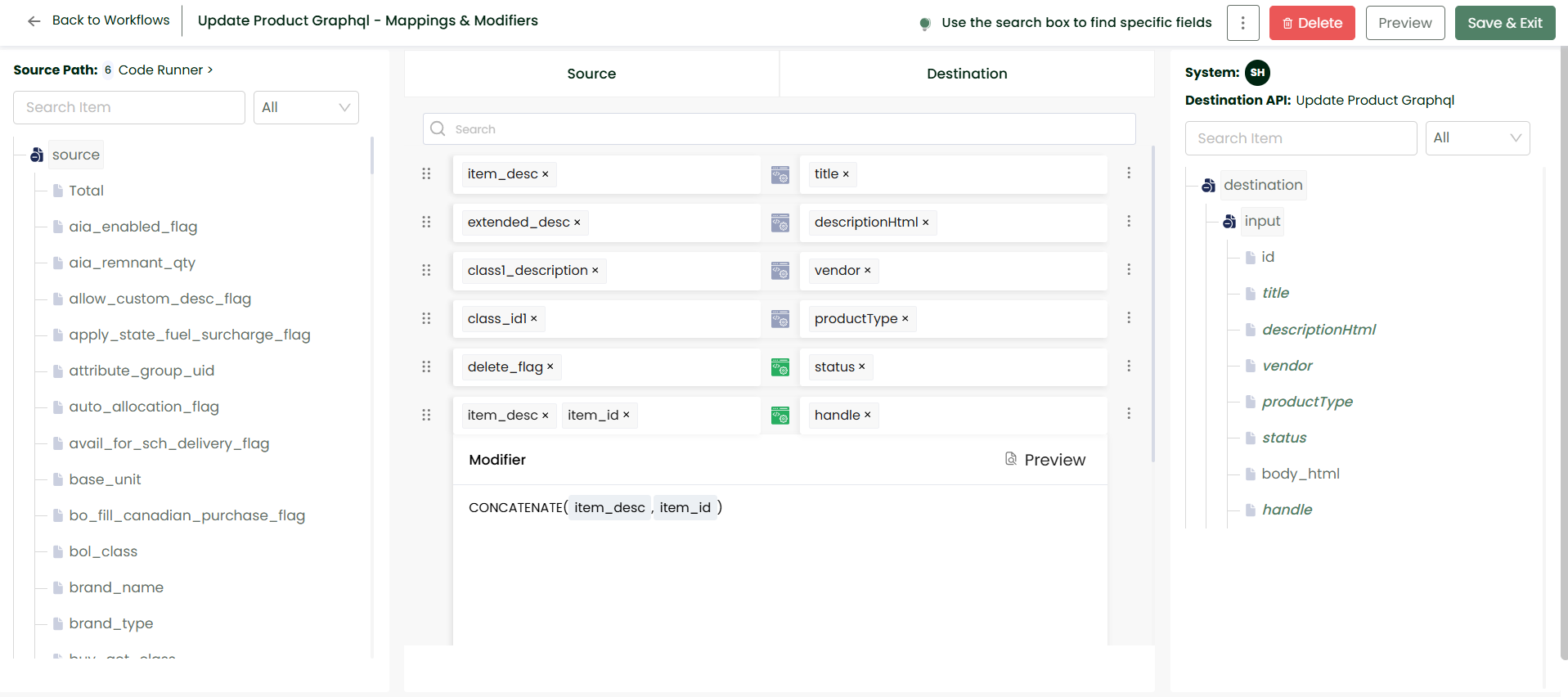
DCKAP Integrator provides a visual mapping interface where you connect source fields to destination fields. This alignment ensures product names don’t accidentally end up in price fields, and inventory counts go exactly where they should.
Step 4: Apply Modifiers (When Needed)
Sometimes data needs adjustment before it reaches the destination system. Modifiers handle these transformations.
Common uses:
- Reformatting dates to match system requirements.
- Converting units of measurement.
- Adjusting price formats.
- Combining or splitting field values.
Modifiers sit between the source and destination, reshaping data so it fits properly into the receiving system.
Step 5: Run the Sync
With your workflow configured, mapping complete, and any modifiers in place, you can execute the sync.
- Click Sync Now to run the workflow immediately, or
- Set a schedule for automatic syncing at regular intervals.
The system processes the data according to your workflow steps. Products, customers, orders, or whatever you’ve configured will move between systems automatically.
Step 6: Monitor with Logs
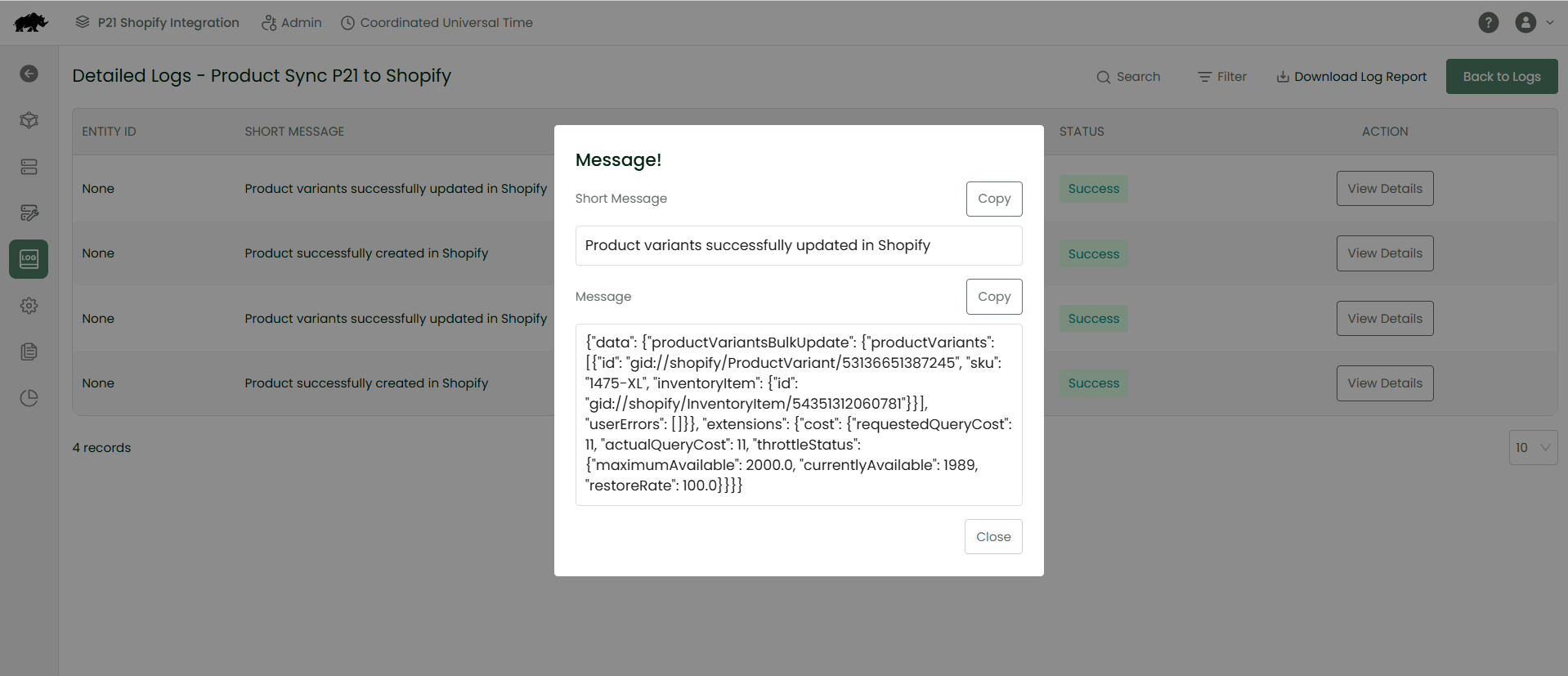
DCKAP Integrator tracks every sync operation. The logging system shows:
- Which workflows ran and when.
- Whether each step completed successfully.
- Any errors that occurred during processing.
For troubleshooting, detailed logs provide step-by-step information about how data moved through the workflow. If something didn’t sync correctly, the logs help you identify exactly where the issue occurred.
Get Started
If you’re running Shopify and Prophet 21 as separate systems, integration brings them together into a connected workflow. DCKAP Integrator is designed specifically for distributors and manufacturers who need ERP-first integration that keeps operational systems as the source of truth.
To explore how this integration would work for your specific setup:
Check out this blog for a detailed look at Shopify–Prophet 21 integration.
The team can walk through your current systems, discuss your sync requirements, and show how the platform handles your specific data flows.