Right now, if you’re like most teams running NetSuite and Shopify side by side, your day includes small moments like these:
WHAT IS
A product’s price changes in NetSuite. It stays wrong on Shopify until someone notices and fixes it by hand.
WHAT COULD BE
A product’s price changes in NetSuite. It’s correct on Shopify within minutes; nobody has to notice anything.
WHAT IS
An order comes in on Shopify. Someone has to remember to enter it into NetSuite before the warehouse can act.
WHAT COULD BE
An order comes in on Shopify. It’s already waiting in NetSuite, ready for the warehouse, before anyone thinks to check.
WHAT IS
At the end of the month, someone spends an afternoon reconciling the two systems, hoping they still agree.
WHAT COULD BE
At the end of the month, there’s nothing to reconcile. The two systems have agreed with each other the entire time.
That gap between what your week actually looks like, and what it could look like is not a technology problem you’ve failed to solve. It’s an opportunity for greater efficiency, happier customers, and aligned teams.
Exactly the sort of opportunity DCKAP was built to help you tap into. As an ERP-first integration platform, it powers NetSuite to become an actual single source of truth. Shopify simply follows.
What Does DCKAP Do?
It performs four key functions:
- Connects NetSuite and Shopify
- Fetches information from the source system
- Transforms and maps the information when required
- Sends the information to the destination system
It also provides logs and monitoring, so teams can see what happened during each synchronization.
To see how this actually plays out, lets take the use case of syncing product info from Netsuite to Shopify.
Step 1: Connect NetSuite and Shopify
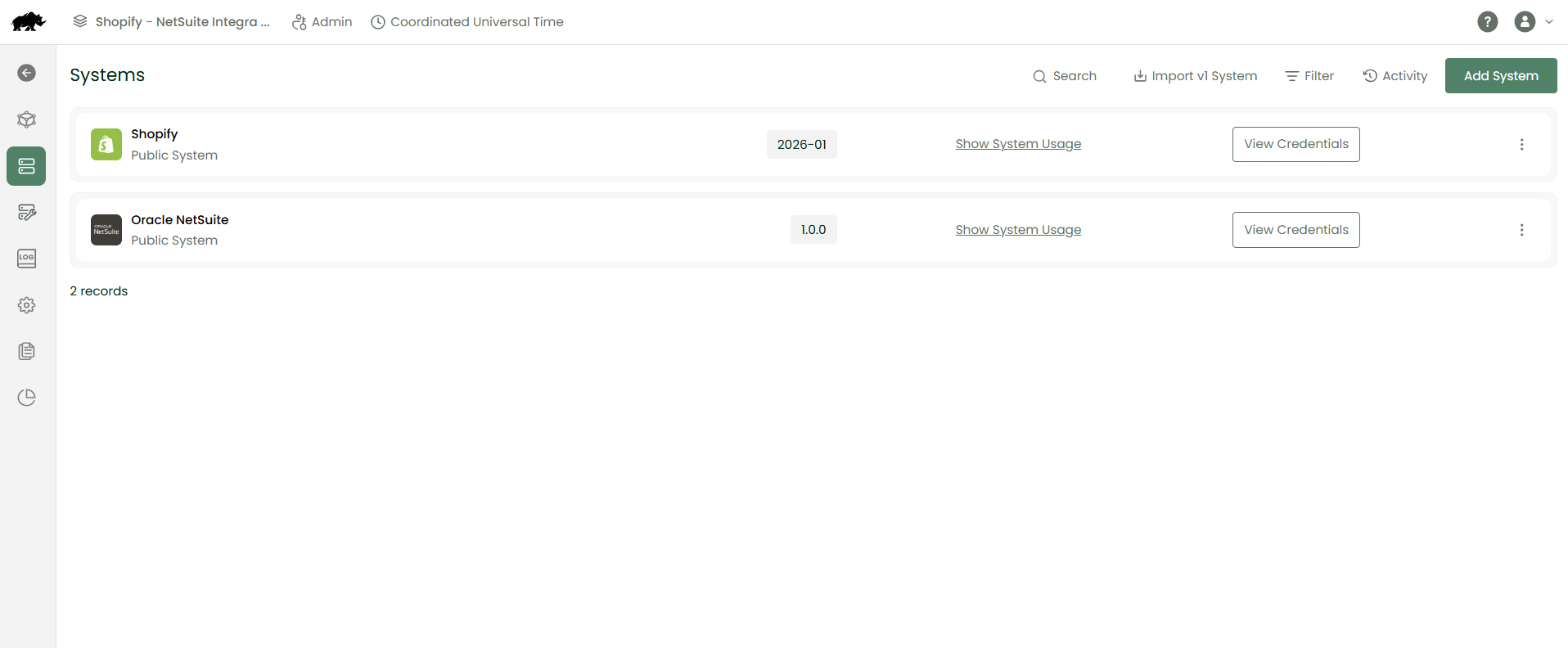
The first step is establishing connections with both systems inside DCKAP Integrator.
NetSuite
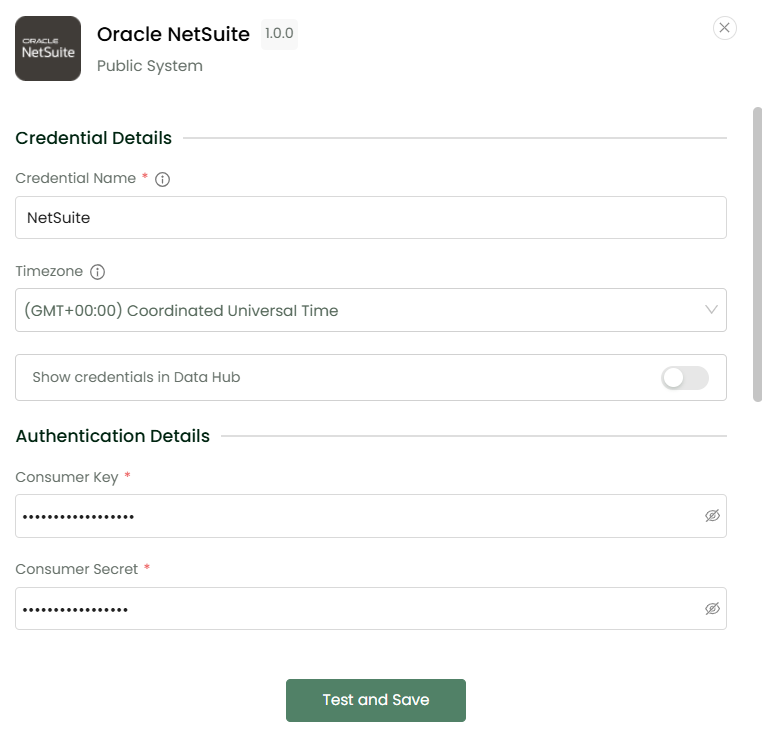
The NetSuite connection requires:
Required credentials:
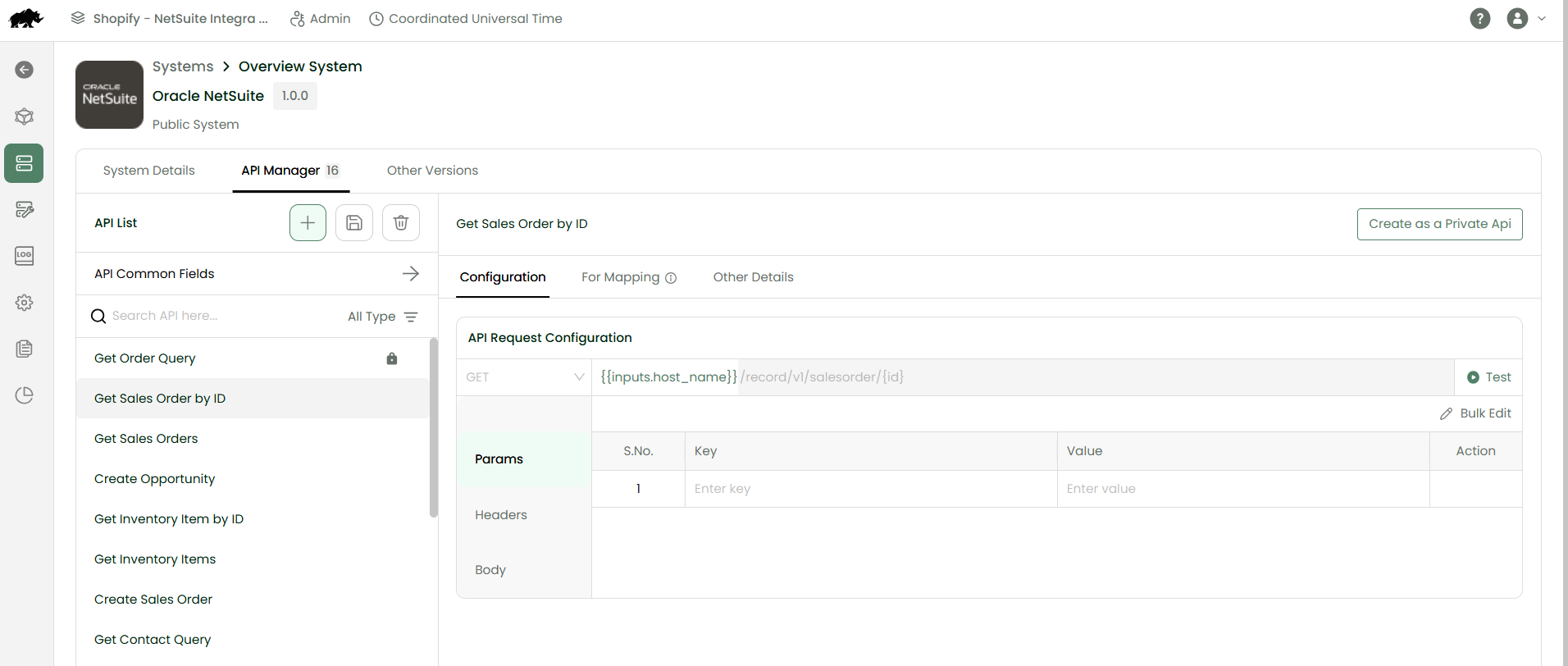
API configuration
Connection testing
Shopify
The Shopify connection follows the same basic process:
Enter the required credentials:
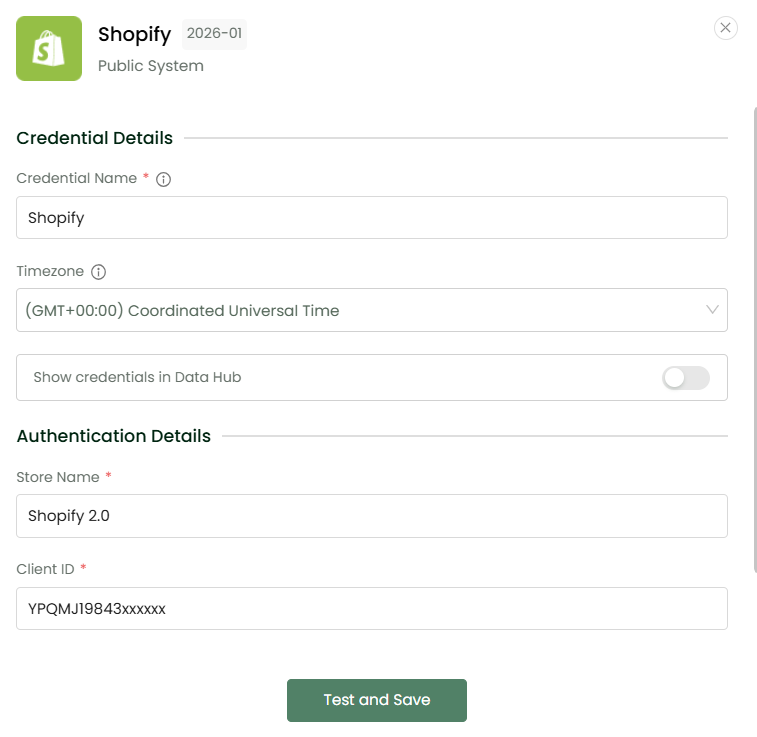
Configure the APIs
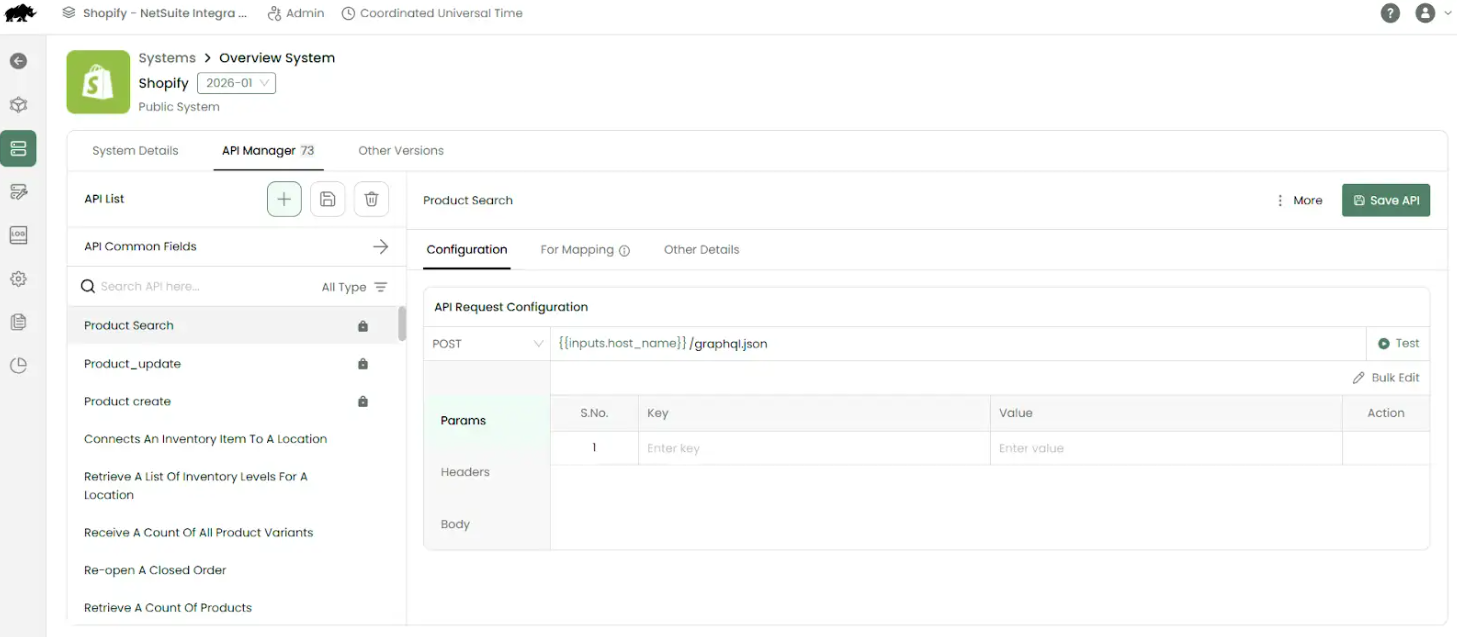
Test the connection
Once both connections are successfully established, DCKAP Integrator can communicate with both systems.
Step 2: Create a Workflow
A workflow is a set of instructions that tells DCKAP Integrator:It uses steps and tools to create a flow like:
- Where to get the data
- What data to retrieve
- How to process it
- Where to send it
- What to do if the record already exists
For example:
Product Sync Workflow
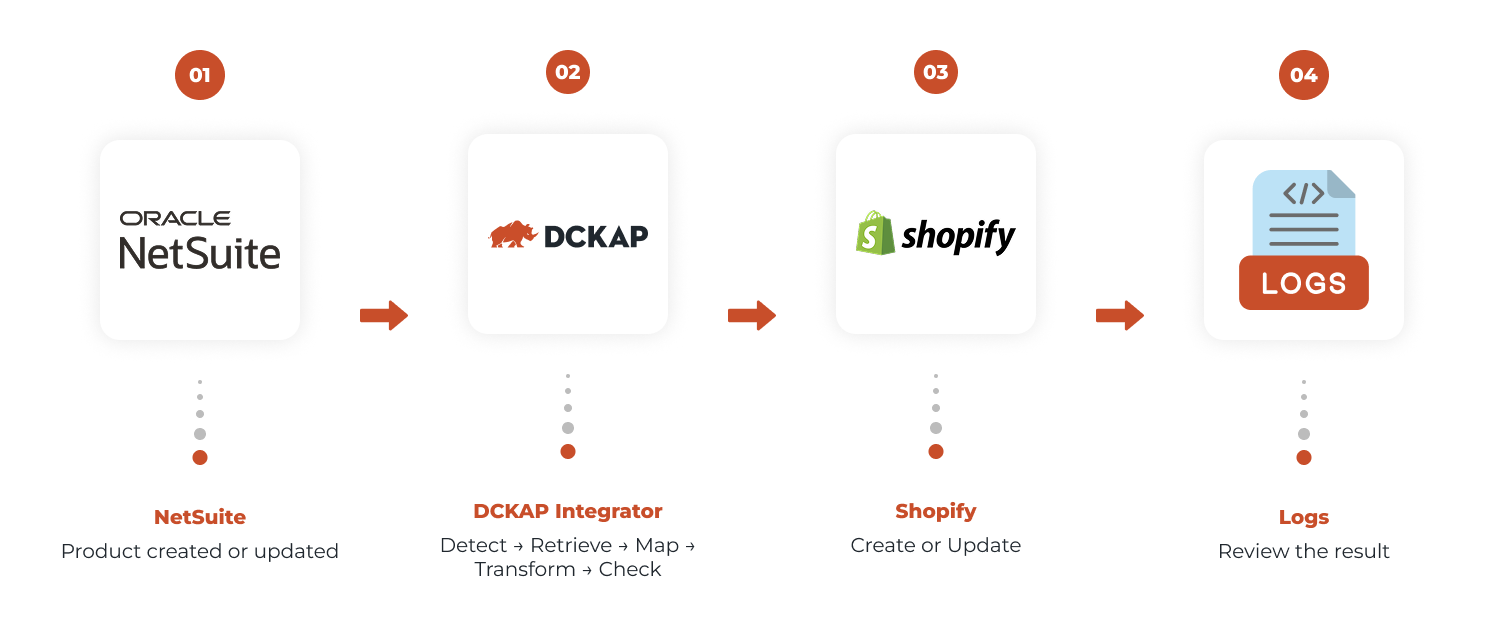
NetSuite → DCKAP Integrator → Shopify
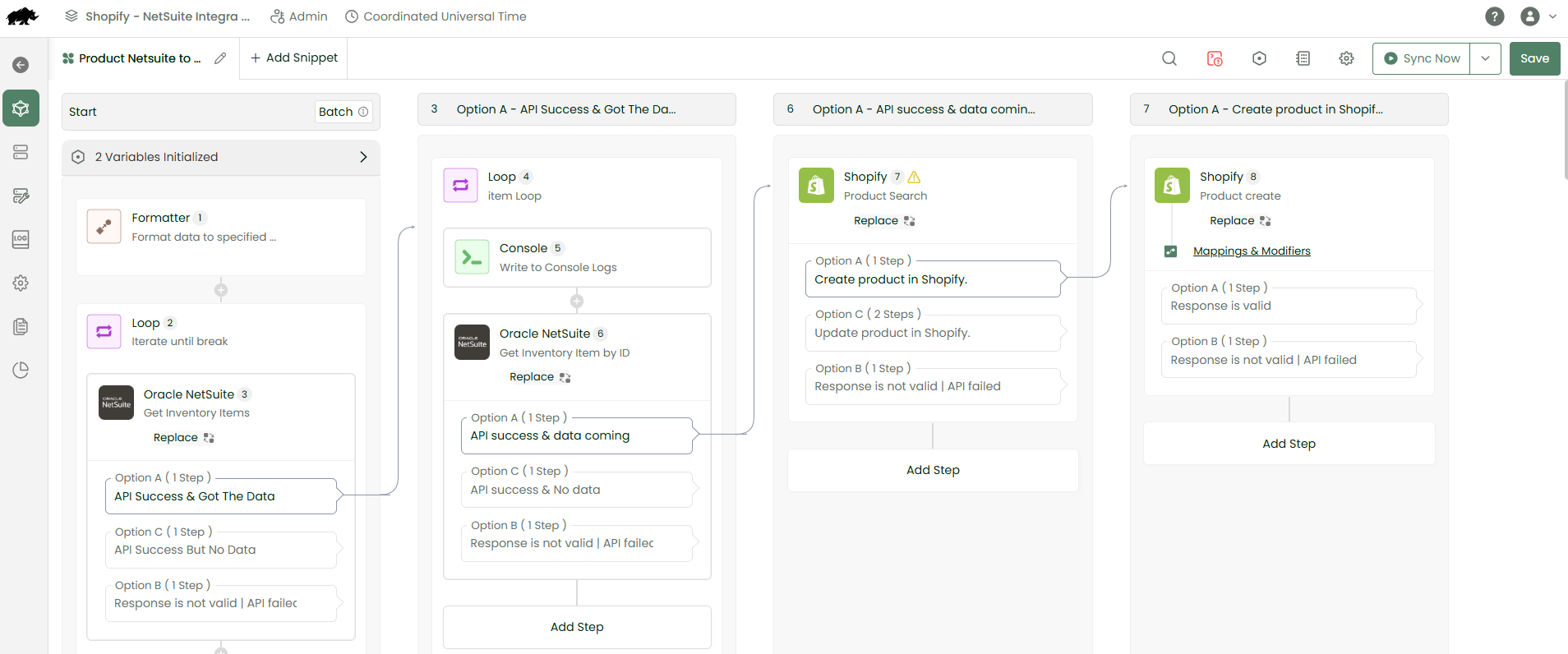
The workflow instructs DCKAP Integrator to search NetSuite for products and synchronize them with Shopify.
Step 3: Mappings and Modifiers
Mappings
NetSuite and Shopify may use different field names or structures for similar information.
For example:
The ERP may call it ‘Item Name’ Whereas your storefront may call the same field ‘Product Title’
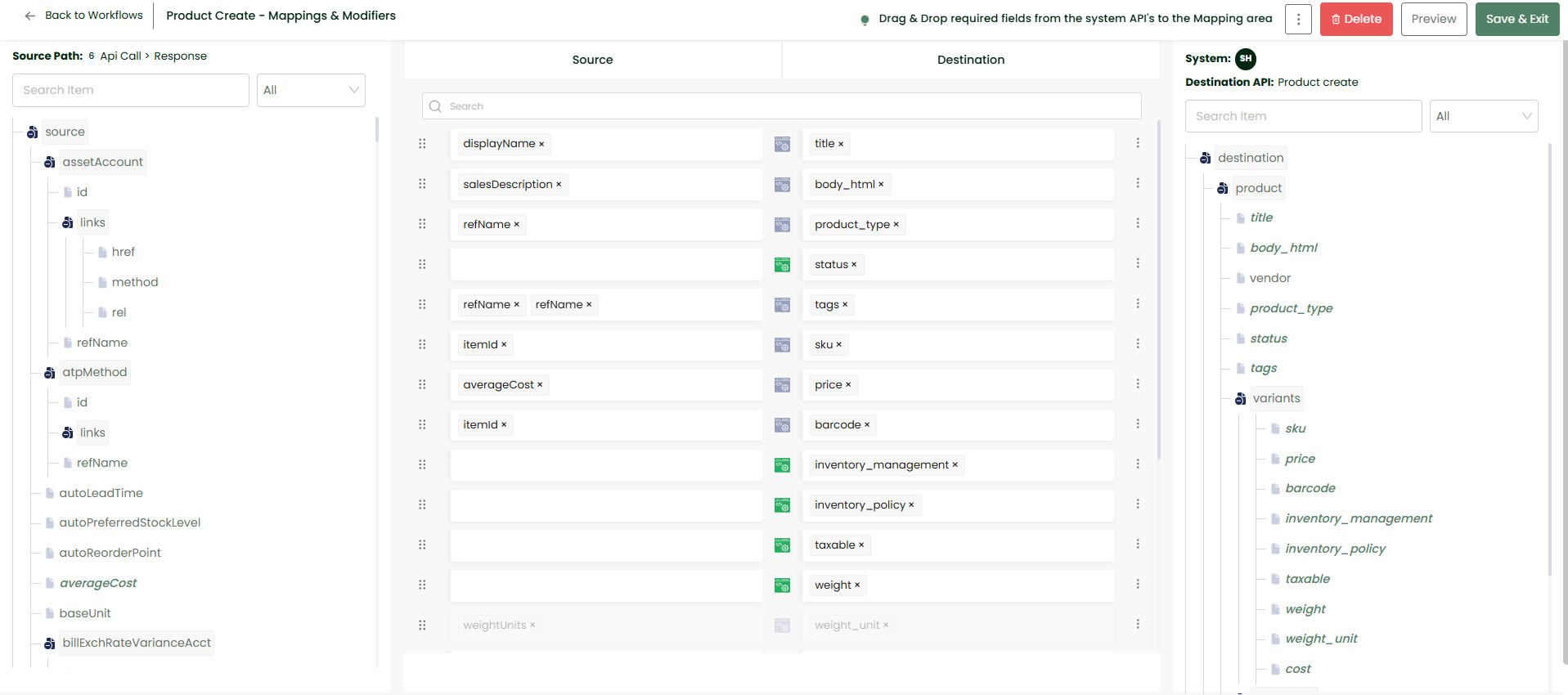
DCKAP Integrator’s mapping feature helps to establish the relationship between these fields. This ensures that information reaches the correct destination.
Modifiers
Sometimes information cannot be sent exactly as it exists in the source system. This is where Modifiers come into play.
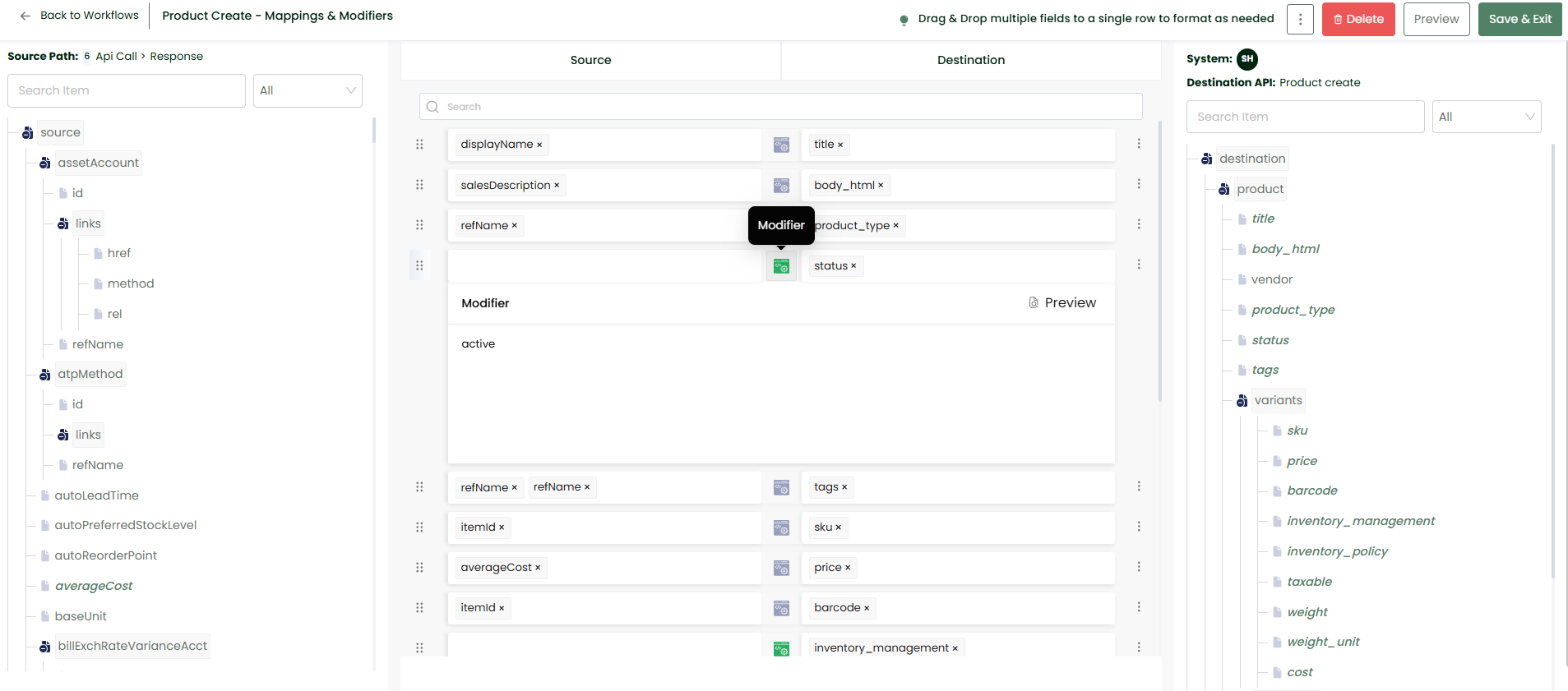
- Adjust values
- Apply conditions
- Format information
- Transform data before sending it to the destination
Step 4: Running the Workflow
Once the connections, workflow, mappings, and modifiers are configured, the workflow can be executed. Select Sync Now to start.
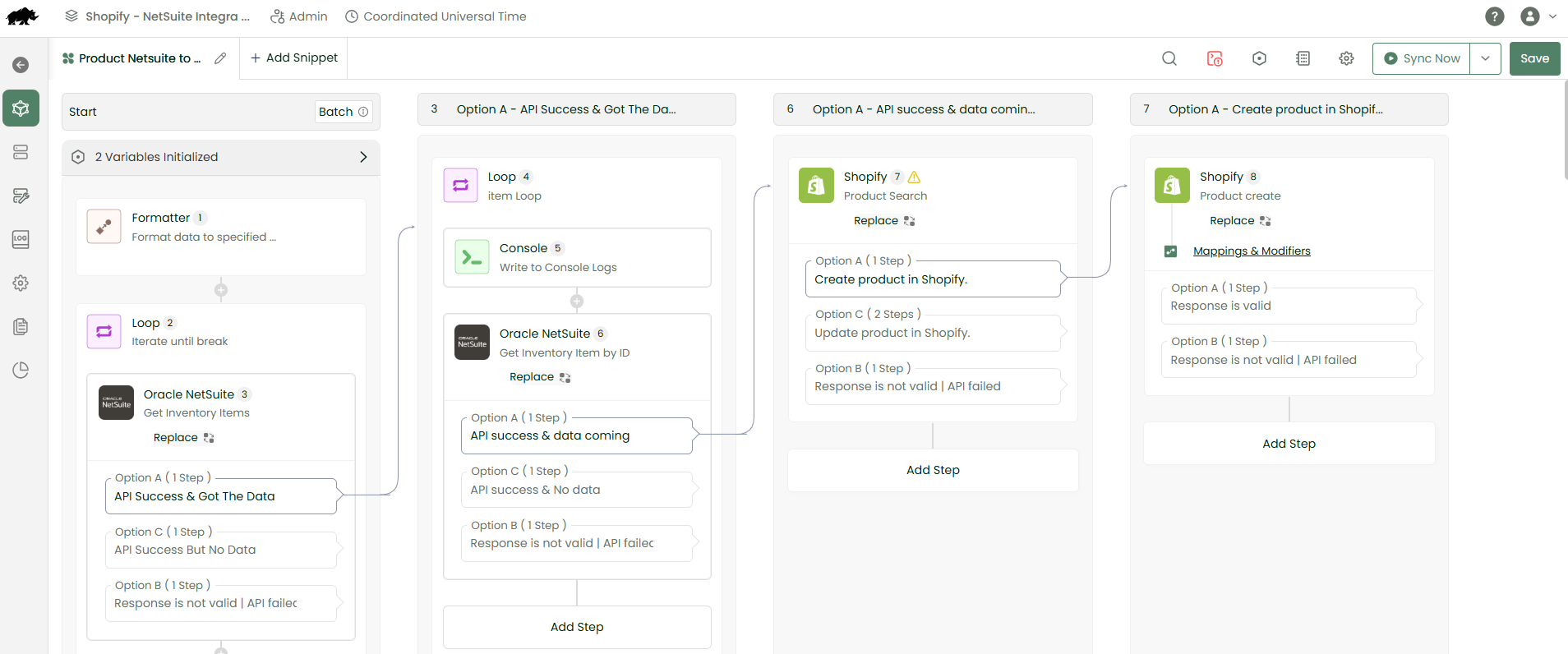
- Checks NetSuite for changes
- Retrieves the relevant products
- Checks Shopify
- Determines whether each product needs to be created or updated
- Sends the information to Shopify
- Records the results in the log
Step 5: Monitoring Through Logs
After the workflow runs, the process does not become a black box. DCKAP Integrator provides logs that show what happened during the synchronization.
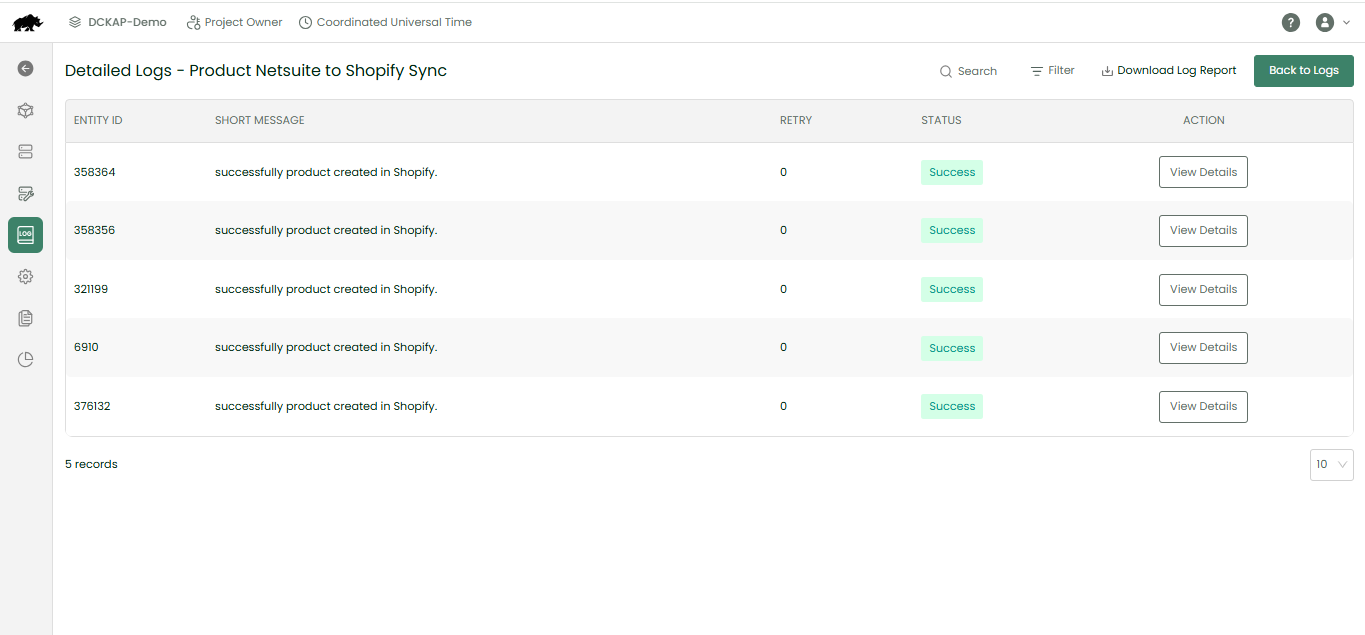
- Which products were created
- Which products were updated
- Which records were skipped
- Whether an error occurred
- Whether any records require attention
The complete product flow
Why DCKAP Integrator Matters
- Manually enter product information
- Update multiple systems
- Copy order information
- Check for duplicate records
- Investigate synchronization issues manually
DCKAP Integrator automates these processes through workflows, allows for batch or real-time dynamic syncs as needed, and is platform agnostic — meaning any system you want to be synced can be connected.
Bonus? You can leave the implementation of the integrations, along with any customizations you need to DCKAP’s team of integration experts.
Ready to get your systems talking?
Speak to an integration expert and see how automation can transform the way your systems work together.